Setup
Once you have installed ROS 2 in an Ubuntu 22.04, there are some steps that you need to work in the course.
Contents
Configuring the ROS user environment
You must adapt your environment by sourcing the following file.
source /opt/ros/humble/setup.bash
Sourcing the ROS 2 setup file will set all the environment variables necessary for operating ROS 2 (to locate its libraries and binaries). This step should be done in any terminal that you use to work with ROS 2. In case you define that you will work mainly with ROS 2, you can add this to your profile, so it will be applied at every bash (e.g., terminal) instance.
echo "source /opt/ros/humble/setup.bash" >> ~/.bashrc
Check environment variables
To use ROS 2, sourcing the setup files establishes crucial environment variables. If the environment variables are not set correctly, you can have problems running the nodes or building it. Verify your environment configuration using the following command:
printenv | grep -i ROS
Check that variables like ROS_DISTRO and ROS_VERSION are set.
ROS_VERSION=2
ROS_PYTHON_VERSION=3
ROS_DISTRO=humble
Danger
Remember, merging Conda and ROS 2 is not recommended unless you have a strong understanding of both systems and the potential risks involved. It’s generally safer and more maintainable to keep them separate.
Working in a networked scenario
In the case that you are working in the classroom or in a shared network place, you should take care about two variables that affect your work. ROS_DOMAIN_ID and ROS_LOCALHOST_ONLY.
The ROS_DOMAIN_ID variable
See the domain ID article for details on ROS domain IDs. The main idea is that you determine a unique integer for your ROS nodes. To choose a safe number, simply choose a domain ID between 0 and 101, inclusive and set the environment variable ROS_DOMAIN_ID. So the auto-discovery will only look inside the specified domain ID). You can set it with the following command:
export ROS_DOMAIN_ID=<your_domain_id>
To maintain this setting between shell sessions, remember to add it to your ~/.bashrc file as we have explained before:
echo "export ROS_DOMAIN_ID=<your_domain_id>" >> ~/.bashrc
The ROS_LOCALHOST_ONLY variable
Caution
ROS 2 talks freely by default! Its topics, services, and actions are accessible to any computer on your network, potentially leading to unexpected interactions.
ROS_LOCALHOST_ONLY environment variable allows you to limit ROS 2 communication to localhost only. This means your ROS 2 system, and its topics, services, and actions will not be visible to other computers on the local network. Using ROS_LOCALHOST_ONLY is helpful in certain settings, such as classrooms, where multiple robots may publish to the same topic causing strange behaviors.
Set it up with:
export ROS_LOCALHOST_ONLY=1
To maintain this setting between shell sessions, you can add the command to your shell startup script:
echo "export ROS_LOCALHOST_ONLY=1" >> ~/.bashrc
Configuring Gazebo
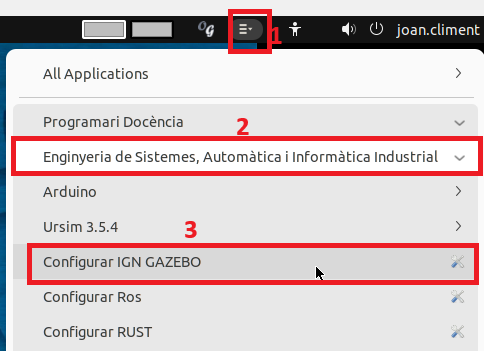
To work with Ignition Gazebo in the ETSEIB computer rooms you need to do the following in order to configure Ignition Gazebo with the IP 127.0.0.1:
Follow the menu in the figure below to run the script that copies the configuration script file igngazebo.sh into your ~/data/bashrc.d folder:
Check that you have the configuration script file igngazebo.sh:

Now, the configuration script will be executed whenever you open a new terminal, allowing to correctly open Ignition Gazebo.
The folder for the repositories
A meta-repository has been created with all the repositories used in these tutorials.
Create a folder called git-projects and clone there the repositories for all the tutorials (in these tutorials we will assume it is created in ~/data folder, following the structure in the ETSEIB computers room, see Some notes about the computers in the ETSEIB computer rooms):
git clone https://gitioc.upc.edu/ros2tutorials/all_introduction_to_ros2_packages
cd all_introduction_to_ros2_packages
git submodule init
git submodule update
Exercise
Execute the command git submodule status to check all the packages that the meta-repository contains.

Organization of GitLab for the course
GitLab allows to create groups for the development of different projects. With GitLab Groups, you can:
Assemble related projects together.
Grant members access to several projects at once.
Groups can also be nested in subgroups.
A group called intro2ros_2025 had been created with subgroups called team01, team02, …
The exercises proposed in these tutorials as well as the final project should be done in groups of 3 students.
The members of each group will be assigned to a team with Mantainer permissions, together with the professors of the course that have Owner permissions.
For each team, a subgroup per exercise (called exercise1, exercise2,…) has already been created, as well as one for the final project.

Exercise
Join in groups of 3 people and send an email to practros@mylist.upc.edu with the following info:
Names
Emails
Once assigned to a team you will receive an email and you will be able to see the group following the Groups menu:

The exercises proposed in the tutorials require the use (and the modification of some) of the packages provided in the meta-repository cloned before. For this purpose, in each of the exercise subgroups, all the projects required to solve the exercise will be imported as explained in the following section. In this way, by cloning all the projects of an exercise, the exercise shall be able to be executed.
Those packages of the all_introduction_to_ros2_packages meta-repository that are needed to follow the tutorials but that are not required for any exercise will not be imported.
Procedure to prepare the exercises
In each of the exercise subgroups, all the projects required to solve the exercise will be imported.
The url required for the importing process can be obtained from the .gitmodule file in the ~/git-projects/all_introduction_to_ros2_packages folder:
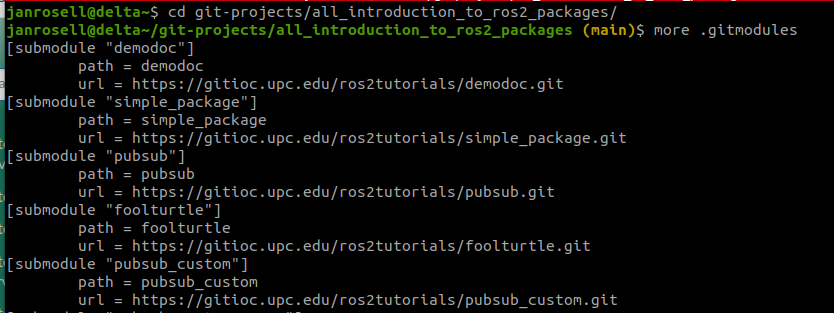
To work with them you will need to first import them within the exercise subgroup, following these steps:
Create a new project:

Follow the Import option:

Chose to import By URL and write the URL for the demodoc project:

Write the name and press the Create button to finalize:

The imported project is already in the exercise1 group:

Exercise
Reproduce those steps to import the demodoc project in the exercise1 subgroup of your GitLab account.
Exercise
In your git-projects folder, where you cloned the all_introduction_to_ros2_packages meta-repository, clone the demodoc project of your GitLab account inside an exercise1 subfolder (change XX by your team number). You can use https:
git clone https://gitlab.com/intro2ros/2025/teamXX/exercise1/demodoc.git exercise1/demodoc
or ssh (by following first the instructions from here):
git clone git@gitlab.com:intro2ros/2025/teamXX/exercise1/demodoc.git exercise1/demodoc
Documenting the solution to the exercises
To document the solution of an exercise, edit the README.md file of the package modified and explain in detail your solution.
See the Markdown Cheat Sheet that contains the main guides that will help you to write good README files.
Tip
Recall, a good README file makes the difference!!
The colcon workspaces
A different colcon workspace will be used to follow each tutorial. First create them in e.g. your home directory:
mkdir -p colcon_ws1/src
mkdir -p colcon_ws2/src
mkdir -p colcon_ws3/src
mkdir -p colcon_ws4/src
mkdir -p colcon_ws5/src
mkdir -p colcon_ws6/src
mkdir -p colcon_ws7/src
mkdir -p colcon_wsFinalWork/src
Exercise
On the colcon_ws1/src folder make a link to the folders of the demodoc project:
ln -s ~/git-projects/exercise1/demodoc
Build the projects:
cd ..
colcon build
Now you can modify the source files in the ~/git-projects/demodoc/src folders if required and add, commit and push the changes.
Tip
It is recommended to do many small commits, instead of a single large commit.
Hacking your bashrc file
Hint
Show me your bashrc file and I will tell you your coding skills, Linux mastery, and just how much of a nerd you really are.
The bashrc file is located in the home directory (referred as ~) of the user ($HOME/.bashrc) and its customization can boost your productivity with aliases, helpers, shortcuts and other functionality. In the section Configuring the ROS user environment had some tips to add to your bashrc file to configure ROS 2. Here others, copy these lines in your file.
Viewing in which branch are you working in git
The ~/.bashrc file can be modified to put colored prompts and show in the terminal the git branch you are in. Add this line to your ~/.bashrc file.
parse_git_branch() {
 git branch 2> /dev/null | sed -e '/^[^*]/d' -e 's/* \(.*\)/ (\1)/'
}
# uncomment for a colored prompt, if the terminal has the capability; turned
# off by default to not distract the user: the focus in a terminal window
# should be on the output of commands, not on the prompt
force_color_prompt=yes
if [ -n "$force_color_prompt" ]; then
    if [ -x /usr/bin/tput ] && tput setaf 1 >&/dev/null; then
        # We have color support; assume it's compliant with Ecma-48
        # (ISO/IEC-6429). (Lack of such support is extremely rare, and such
        # a case would tend to support setf rather than setaf.)
        color_prompt=yes
    else
        color_prompt=
    fi
fi

if [ "$color_prompt" = yes ]; then
    PS1="${debian_chroot:+($debian_chroot)}\[\033[01;32m\]\u@\h\[\033[32m\]\w\[\033[33m\]\$(parse_git_branch)\[\033[00m\]$ "
else
    PS1='${debian_chroot:+($debian_chroot)}\u@\h:\w\$ '
fi
unset color_prompt force_color_prompt
Create some alias
The alias helps you avoid typing commands with many arguments by using a single word, e.g.:
alias compile='colcon build --symlink-install'
alias cleanws='rm -rf build install log'
alias soinst='source install/setup.bash'
Some notes about the computers in the ETSEIB computer rooms
The configuration of the systems in the ETSEIB, the students have in their $HOME directory when they log in the classrom:
Local profile
When you log in, the folder /home/$HOME (e.g., /home/pep.martinez) contains files that remain on the local computer. Therefore, if you switch computers or the computer is restored, these files will be erased.
$HOME/data
This folder is mounted on every computer the student logs into. Currently, students have a quota of 2GB with backup.
$HOME/scratch
This folder is mounted on every computer the student logs into. Currently, students have a quota of 1GB without backup.
$HOME/data/bashrc.d
As the user in the ETSEIB classrooms does not have a unique
$HOME(as it is local to each workstation), an alternative is to add any script with the.shextension to this folder, which will be executed when a terminal is opened.