ROS Final Project
Motivation and aim
There are several computer engines to play chess that perform really well, like Stockfish and Komodo , and there are several competitions, like the Top Chess Engine Championship.

This is ok, but who in the hell is going to move the pieces in a real scenario? Roboticists, come to the rescue!!
The aim of this final project is to put in practice all the ROS 2 tools that have been seen so far, in order to make the ur3 robots available at the ETSEIB robotics lab move the chess pieces.
A chess match will take place between a human and a robot. The robot will be responsible of moving the pieces according to the chess motions given by a user (or optionally by a chess engine).
Setup
In order to implement the system that shall control the robot motions, the following hardware and software components are provided:
Chessboard and chess pieces labeled with aruco markers
The realsense camera that provides 2D and 3D images.
The hardware drivers for the robots, the tools and the camera.
The scene setup in rviz and gazebo.
Chessboard
The cells of the chessboard have sides of 5 cm; and are labeled as usual with numbers (the rows) and letters (the columns):
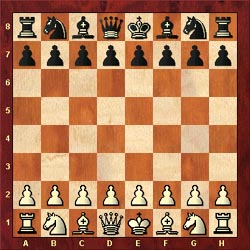
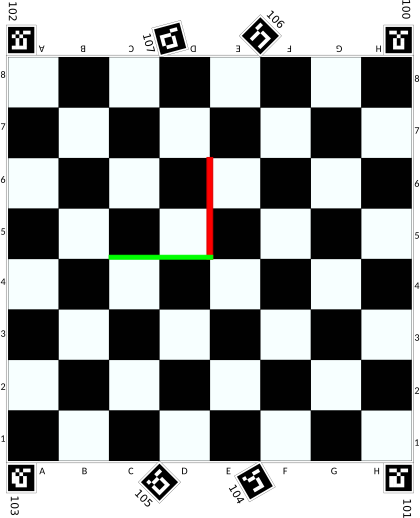
There are 8 aruco markers on the chessboard, with labels 100 to 107, that will be used to calibrate the camera pose. Their size is 26 x 26 mm.
The world reference frame is located at the center of the chessboard (coincident with the chess_frame).
Pieces
The pieces have aruco markers with the following numbering:
Black pawns: From 201 to 208.
Black rooks: 209, 210.
Black knights: 211, 212.
Black bishops: 213, 214.
Black queen: 215.
Black king: 216.
White pawns: From 301 to 308.
White rooks: 309, 310.
White knights: 311, 312.
White bishops: 313, 314.
White queen: 315.
White king: 316.
The base of the pieces is 30 x 30 mm and the size of the aruco markers is 26 x 26 mm.
The height of the pieces is:
Pawns: 4 cm.
Rooks, knights and bishops: 6 cm.
King and queen: 8 cm.
The robot
The robot is located w.r.t. the world frame at (0.37, 0.0, -0.004, 0.0, 0.0, 1.5708), being the transformations expressed as (x,y,z,r,p,y).
The exact actual location should be obtained using a calibration procedure that will be provided.
The robot will play black.
Provided packages
The following packages in the course meta-repository all_introduction_to_ros2_packages will be used for the final project:
chesslab_setup2: The chess scene setup and a server for basic planning services.
chesslab_setup2_interfaces: Service interfaces of the chesslab_setup2 package.
kinenikros2: Package to compute the Inverse Kinematics of any robot from Universal Robots (UR3, UR5, UR10, UR3e, UR5e, UR10e).
robotiq_85_gripper: Set of packages to model and control the robotiq gripper.
robotiq_85_gripper_server: Packages with services to control the robotiq gripper.
tablesens: Package for the calibration of the realsense camera.
aruco_broadcaster: Package to easily configure and publish the tf of the aruco frames detected.
To work with them follow these instructions:
From your ~/data/git-projects/all_introduction_to_ros2_packages folder update the metapackage to be sure you have the latest versions of the packages:
git pull
git submodule init
git submodule update
Create the colcon workspace folder for the final project, call it colcon_wsFinalWork.
Follow the procedure shown in Procedure to prepare the exercises to import in the intro2ros/2025/teamXX/final_work subgroup of your GitLab account the packages:
chesslab_setup: https://gitioc.upc.edu/ros2tutorials/chesslab_setup2.git
chesslab_setup2_interfaces: https://gitioc.upc.edu/ros2tutorials/chesslab_setup2_interfaces.git
In your git-projects folder clone the chesslab_setup project of your GitLab account inside an final-work subfolder (change XX by your team number). You can use https:
git clone https://gitlab.com/intro2ros/2025/teamXX/final-work/chesslab_setup2.git final-work/chesslab_setup2
git clone https://gitlab.com/intro2ros/2025/teamXX/final-work/chesslab_setup2_interfaces.git final-work/chesslab_setup2_interfaces
or ssh:
git clone git@gitlab.com:intro2ros/2025/teamXX/final-work/chesslab_setup2.git final-work/chesslab_setup2
git clone git@gitlab.com:intro2ros/2025/teamXX/final-work/chesslab_setup2_interfaces.git final-work/chesslab_setup2_interfaces
In your colcon_wsFinalProject/src folder make logical links to the folders projects.
ln -s ~/data/git-projects/all_introduction_to_ros2_packages/kinenikros2
ln -s ~/data/git-projects/all_introduction_to_ros2_packages/robotiq_85_gripper
ln -s ~/data/git-projects/all_introduction_to_ros2_packages/robotiq_85_gripper_server
ln -s ~/data/git-projects/all_introduction_to_ros2_packages/aruco_ros
ln -s ~/data/git-projects/all_introduction_to_ros2_packages/aruco_broadcaster
ln -s ~/data/git-projects/all_introduction_to_ros2_packages/tablesens
ln -s ~/data/git-projects/final-work/chesslab_setup2
ln -s ~/data/git-projects/final-work/chesslab_setup2_interfaces
In your colcon_wsFinalWork folder build the packages.
colcon build
source install/setup.bash
Testing
The chesslab_setup package contains all what is necessary to set up the scene in rviz.
Checking the urdf model of the scene
Launch the chesslab_view.launch.py file to visualize the robot.
ros2 launch chesslab_setup2 chesslab_view.launch.py

Testing the offered services
Launch the chesslab_setup2_demo.launch.py file to also load the environment (the camera, the chessboard and two pieces) and start the services to:
Place the pieces
Move the robot
Attach / detach a piece
Compute the inverse kinematics
ros2 launch chesslab_setup2 chesslab_setup2_demo.launch.py

Check the available services and call them from a terminal:
To reset the scene:
ros2 service call /chesslab_setup2_demo/reset_scene std_srvs/srv/Empty
To move the white king (object 316)
ros2 service call /chesslab_setup2_demo/set_object_pose chesslab_setup2_interfaces/srv/SetObjPose "{objid: 316, p: {position: {x: 0.075, y: 0.025, z: 0.04}, orientation: {x: 0.0, y: 0.0, z: 0.0}}}"
To move the robot to a given configuration:
ros2 service call /chesslab_setup2_demo/set_robot_config chesslab_setup2_interfaces/srv/SetRobConf "{conf: [0.0, 0.0, -1.0, 0.0, 0.0, 0.0]}"
To compute the inverse kinematics of the end-effector of the robot (tool0 frame) w.r.t. the base reference frame and to move the robot to one of the solutions:
ros2 service call /inverse_kinematics kinenikros2/srv/InverseKinematics "{pose: {position: {x: -0.025, y: -0.295, z: 0.2}, orientation: {x: 1.0, y: 0, z: 0, w: 0.0}}}"
ros2 service call /chesslab_setup2_demo/set_robot_config chesslab_setup2_interfaces/srv/SetRobConf "{conf:[1.10, -1.54, 2.10, -2.13, -1.57, 2.66] }"
To attach a piece to the gripper:
ros2 service call /chesslab_setup2_demo/attach_obj chesslab_setup2_interfaces/srv/AttachObj "{objarucoid: '316'}"
To move to another location and detach the piece from the gripper:
ros2 service call /chesslab_setup2_demo/set_robot_config chesslab_setup2_interfaces/srv/SetRobConf "{conf:[1.27, -1.54, 2.10, -2.13, -1.57, 2.84] }"
ros2 service call /chesslab_setup2_demo/detach_obj chesslab_setup2_interfaces/srv/DetachObj "{objarucoid: '316'}"
ros2 service call /chesslab_setup2_demo/set_robot_config chesslab_setup2_interfaces/srv/SetRobConf "{conf: [0.0, 0.0, -1.0, 0.0, 0.0, 0.0]}"
Check the setup in gazebo
The package chesslab_setup simulates the chesslab scenario with the robot and the chessboard.
Launch the simulation and control the robot with the rqt tool (with the joint trajectory controller plugin you can chose to move the robot joints):
ros2 launch chesslab_setup2 chesslab_gz.launch.py launch_rviz:=true
rqt

Now actuate the gripper with the service GripperOrder to move the fingers between fully closed (position=0.085) or fully open (position=0.79), or directly with the GripperOpen or GripperClose to move directly between the extreme values.
ros2 service call /GripperOrder robotiq_85_gripper_server/srv/GripperOrder "{position: 0.5, speed: 0.5, force: 0.1}"
ros2 service call /GripperOpen  robotiq_85_gripper_server/srv/GripperOpen "order: true"
ros2 service call /GripperClose robotiq_85_gripper_server/srv/GripperClose "order: true"
exercise
These services wrap an action client that send the corresponding commands to the FollowJointTrajectory action server.
Take a look at the file gripper_server_sim.cpp of the package robotiq_85_gripper_server where this is implemented.
exercise
Move the robot using rqt to a configuration to pick a piece, e.g. to grasp the black tower you can use the configuration [-0.3, -1.39, -2.1, -1.3, 1.57, -1.0] (start moving from joint 6 to joint 1), then grasp it by closing the gripper (use the GripperOrder service with position 0.55), and move the robot gripper slightly up to verify it actually grasped the object.

Calibration of the camera pose in the lab
In this section we will calibrate tha camera (i.e. determine the transform between the world frame and the camera frame) by using:
The aruco markers in the chessboard (with IDs ranging from 100 to 107) printed at know positions (i.e. with known transforms from the world frame to the corresponding aruco frames).
The aruco frames detected, corresponding to these aruco markers (i.e. the transform between the camera and the aruco frames).
First, let’s start by running the nodes that start the camera and run and visualize the aruco markers:
colcon build --packages-up-to aruco_broadcaster
source install/setup.bash
ros2 launch tablesens aruco_realsense.launch.py
Move the camera as required so as to have a correct view of all the aruco markers in the chessboard.

Now, in another terminal, run the node that actually calibrates the camera (obtains the camera_link frame):
ros2 launch tablesens tablecalibrator.launch.py
The result is the position of the camera; write it down!!

Finally:
Update the camera pose in the aruco_pl2.launch.py file of the aruco_broadcaster package with the new calibrated value.
Put some chess pieces on the chessboard.
Run the aruco_broadcaster node that publishes the tf of the markers detected, among those specified in the pl2esaii.yaml configuration file.
colcon build --packages-up-to aruco_broadcaster
ros2 launch aruco_broadcaster aruco_pl2.launch.py

You can check the detected poses using the tf2_ros package in another terminal:
ros2 run tf2_ros tf2_echo world aruco_XXX
Testing the robot and the gripper
To test the robot you will need to:
Launch the robot driver with the robot IP and type of robot correctly set.
Prepare the robot to be controlled by an external computer (the procedure depends on the type of robot).
Test the external control using the rqt tool.
Step 1. Launching the driver
Launch the ur_control.launch.py file from the ur_robot_driver with the joint_trajectory_controller set as initial_joint_controller and the ur_type and robot_ip arguments set according to your workstation:
The robot IPs are:
WS-1 robot IP: 10.5.20.79WS-2 robot IP: 10.5.20.80WS-3 robot IP: 10.5.20.81WS-4 robot IP: 10.5.20.82WS-5 robot IP: 10.5.20.83WS-6 robot IP: 10.5.20.84The robot types are:
WS-1 robot type: CBSWS-2 robot type: CBSWS-3 robot type: e-seriesWS-4 robot type: e-seriesWS-5 robot type: e-seriesWS-6 robot type: e-series, e.g.:
For instance, in workstation number WS-4:
ros2 launch ur_robot_driver ur_control.launch.py initial_joint_controller:=joint_trajectory_controller ur_type:=ur3e robot_ip:=10.5.20.82
Step 2. Preparing the real robot (CBS series)
If you are in workstation 3 to 6 skip this section.
Power on the robot.
Then, inside the Structure Editor the URCaps option will appear. By clicking it will show all the URCaps installed in the robot. Click the External Control option. To run it, click on the Play button (bottom left).
Note: Before running it, the driver must be launched.
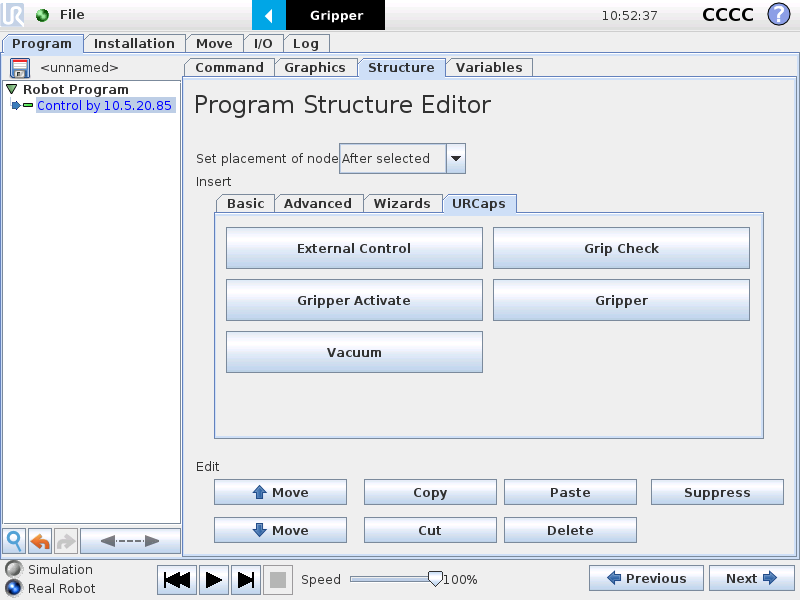
The terminal will show these messages:
[ur_ros2_control_node-4] [INFO] [1701080698.743558126] [UR_Client_Library:]: Robot requested program
[ur_ros2_control_node-4] [INFO] [1701080698.743615037] [UR_Client_Library:]: Sent program to robot
[ur_ros2_control_node-4] [INFO] [1701080699.071042167] [UR_Client_Library:]: Robot connected to reverse interface. Ready to receive control commands.
Step 2. Preparing the real robot (e-series)
If you are in workstation 1 or 2 skip this section.
Power on the robot.
Then, go to the Program tab and click on URCaps->External Control.
A new section is added to the program of the robot. To run the robot click on the Play button (bottom right) and in the “play from selection” option. Now the robot is ready to run from the IP given in the previous step.
Note: Before running it, the driver must be launched.

The terminal will show these messages:
[ur_ros2_control_node-4] [INFO] [1701080698.743558126] [UR_Client_Library:]: Robot requested program
[ur_ros2_control_node-4] [INFO] [1701080698.743615037] [UR_Client_Library:]: Sent program to robot
[ur_ros2_control_node-4] [INFO] [1701080699.071042167] [UR_Client_Library:]: Robot connected to reverse interface. Ready to receive control commands.
Step 3. Testing the robot with rqt
To test the robot open rqt, load the Controller manager plugin and the Joint trajectory controller plugin.
Change the speed scaling to 10%.
Move the robot with the sliders by just moving them very slightly, as we did in simulation.
CAUTION!!!
You can damage the robot if not manipulated with care.
Move the robot slowly and start with joint 1 (shoulder).
Always be prepared to press the red STOP button to prevent any contact with the table.
Testing the gripper
To test the gripper you first need to launch the gripper driver and the gripper server:
ros2 launch robotiq_85_driver gripper_driver.launch.py
ros2 launch robotiq_85_gripper_server robotiq_85_gripper_server.launch.py
Then you can test the three services offered:
To open the gripper at its maximum aperture use the
/GripperOpenservice:
bool order
---
bool status
Call it from the terminal:
ros2 service call /GripperOpen robotiq_85_gripper_server/srv/GripperOpen "order: true"
To completely close the gripper use the
/GripperCloseservice:
bool order
---
bool status
Call it from the terminal:
ros2 service call /GripperClose robotiq_85_gripper_server/srv/GripperClose "order: true"
To move the fingers to a given aperture and exerting a given force use the
/GripperOrderservice:
float32 position
float32 speed
float32 force
---
bool status
Call it from the terminal:
ros2 service call /GripperOrder robotiq_85_gripper_server/srv/GripperOrder "position: 30.0"
Development
The teams can use the offered packages (not mandatory), and others, if required.
The ROS system to be implemented should respond to the human queries (or from a chess engine) to make a chess action (a movement to a free cell, a movement to kill a piece or to castle movement).
The development of the project can be split in the following three modules.
Planning module
It should be responsible for planning the sequence of motions to execute a chess action. The following services and function could be provided to:
Set a random initial chess state.
Compute the robot pose to pick/place a piece in any given cell.
Plan a rectilinear motion.
Plan the motions for a pick action.
Plan the motions for a place action.
Sensing module
It should be the responsible for sensing the state of the environment. It should provide services to:
Setup: Detect the poses of the chess pieces (in the real or simulated scenario) and set them in rviz.
Give the location of a given chess piece.
Optionally, check the correct result of a pick-and-place motion.
Optionally, check the correctness of a chess action query.
Action manager module
It should be the responsible for launching the execution in the Gazebo simulation and in the real environment. It should provide functions and services to:
Open/close the gripper.
Execute a robot motion.
Receive the chess action query to be executed.
Manage the whole process.
Package organization
The project must be able to run by using:
The packages in the meta-repository all_introduction_to_ros2_packages.
The packages in your final-work subfolder of your Gitlab account (https://gitlab.com/intro2ros/2025/teamXX/final-work, being XX your team number).
Evaluation
Deliverables
The git repo with all the code. The code should be well commented and a README.md file should be provided explaining:
The details of the implemented solution.
The instruction to reproduce the solution.
Video with the performance in simulation.
Tests
The following tests will be used to evaluate the performance of the implemented system:
Perceive a given state of a chess match in Gazebo or in the real scenario.
Plan the motions to move a piece in the perceived state.
Plan the motions to kill a piece in the perceived state..
Plan the motions for a castle operation in the perceived state..
Execute any of the previous plans in Gazebo.
Execute any of the previous plans in the real robot.
Evaluated issues
The following points will be taken into consideration for the evaluation:
Performance of the tests.
Structure of the solution.
The correct use of topics, services and actions.
Efficient use of launch files.
Code style and documentation.