Tutorial 3: Tools
Objective: This tutorial session is devoted to learn the ROS 2 launch utility, the tf library as a tool to specify and work with reference frames and, finally, to learn how robots are modeled and visualized.
Contents
After this session you will be able to:
Run your complete ROS 2 robotic system application by using the launch utility.
Understand and visualize the buffered-in-time ROS tree structure.
Broadcast/listen to a coordinate frame.
Understand the structure of URDF files and the Xacro extension.
Use the rviz tool to visualize the robot and its environment.
References:
Chapter 2 of the book Concise Introduction to Robot Programming With Ros2 by Francisco Martín Rico (examples: https://github.com/fmrico/book_ros2).
Chapter 8 of the book A very informal journey through ROS 2 Marco Mateo Bassa (examples: https://github.com/nirwester/ros2_journey_examples).
Complementary resources:
Provided packages:
This tutorial will use the following package:
Package custom_interfacesPackage learning_tf2Package pubsub_custom_paramPackage rviz2_marker_demoPackage ur_descriptionPackage urdf_tutorial
Prepare the colcon workspace to work with it:
If you have not yet done so, follow the steps in Setup to:
clone in your ~/data/git-projects folder the meta-repository containing all the required packages,
create the colcon workspace folders (use colcon_ws3 for the current tutorial).
Follow the procedure shown in Procedure to prepare the exercises to import in the intro2ros/2025/teamXX/EXERCISE3 subgroup of your GitLab account the packages:
pubsub_custom_param: https://gitioc.upc.edu/ros2tutorials/pubsub_custom_param.git
urdf_tutorial: https://gitioc.upc.edu/ros2tutorials/urdf_tutorial.git
In your git-projects folder clone the pubsub_custom_param and urdf_tutorial projects of your GitLab account inside an exercise3 subfolder (change XX by your team number). You can use https:
git clone https://gitlab.com/intro2ros/2025/teamXX/exercise3/pubsub_custom_param.git exercise3/pubsub_custom_param
git clone https://gitlab.com/intro2ros/2025/teamXX/exercise3/urdf_tutorial.git exercise3/urdf_tutorial
or ssh:
git clone git@gitlab.com:intro2ros/2025/teamXX/exercise3/pubsub_custom_param.git exercise3/pubsub_custom_param
git clone git@gitlab.com:intro2ros/2025/teamXX/exercise3/urdf_tutorial.git exercise3/urdf_tutorial
In your colcon_ws3/src folder create a symbolic link to the packages to be used:
ln -s ~/data/git-projects/all_introduction_to_ros2_packages/custom_interfaces
ln -s ~/data/git-projects/exercise3/pubsub_custom_param
ln -s ~/data/git-projects/exercise3/urdf_tutorial
ln -s ~/data/git-projects/all_introduction_to_ros2_packages/Universal_Robots_ROS2_Description
ln -s ~/data/git-projects/all_introduction_to_ros2_packages/learning_tf2
ln -s ~/data/git-projects/all_introduction_to_ros2_packages/rviz2_marker_demo
The launch utility
The launch utility in ROS 2 is used to automate the running of many nodes with a single command, i.e. to configure how the nodes should be run and execute them. The configuration includes:
what programs to run,
where to run them,
what arguments to pass them, and
other ROS-specific conventions.
Launch files can be written in Python, XML, or YAML. In these tutorials, the Python alternative will be explained, since most of the ROS 2 launch files are mainly written in Python. See the ROS 2 How-to Guides Using Python, XML, and YAML for ROS 2 Launch Files for a comparison.
Basic features
Launch file are run using the
ros2 launchcommand, and all of the nodes specified will be run.All of the nodes in a launch file are started at roughly the same time. As a result, you cannot be sure about the order in which the nodes will initialize themselves. Well-written ROS nodes don’t care about the order in which they and their siblings start up (e.g. a service call must not be done and remain waiting while the server is not yet running).
To terminate an active roslaunch, use
Ctrl+Cin the corresponding terminal. This signal will attempt to gracefully shut down each active node from the launch.
Naming and placing conventions
Each launch file should be associated with a particular package.
The usual naming scheme is to give launch files names ending with _launch.py or .launch.py.
They should be stored in a subdirectory usually called launch.
The launch directory should be installed, i.e. in the CMakeList.txt file you should add:
install(DIRECTORY launch DESTINATION share/${PROJECT_NAME})
Implementation
launch is a generic library that implements the domain concepts and infrastructure to start multiple processes, it is ROS agnostic.
launch_ros adds ROS-specific domain concepts which makes it usable to start, coordinate and monitor multiple ROS nodes.
The launch file structure
These are the main elements of a Python-based launch file:
1. Import statements to pull in some Python launch modules
1from launch import LaunchDescription
2from launch_ros.actions import Node
3# add other imports as required
2. The generate_launch_description function
This function returns a LaunchDescription object, which contains several actions, the main ones being:
Node (from launch_ros library): to run a program,
IncludeLaunchDescription (from launch library): to include another launcher,
DeclareLaunchArgument (from launch library): to declare launcher parameters,
SetEnvironmentVariable (from launch library): to set an environment variable.
OpaqueFunction (from launch library): to execute a Python function.
1def generate_launch_description():
2  return LaunchDescription([
3
4  ])
The Node action
The main element of the LaunchDescription object are the Nodes, corresponding to the nodes to be launched. They have the following attributes:
executable (required): The name of the executable to find if a package is provided or otherwise a path to the executable to run.
package (optional): The package in which the node executable can be found.
name (optional): The name that will acquire the node once launched. This overrides any name that the node might have set in its source file. It should be a relative name (without mention of any namespaces), not a global name.
namespace (optional): The ROS namespace for this Node.
parameters (optional): Used to set the parameters that the node may use for its configuration.
remappings (optional): Ordered list of ‘to’ and ‘from’ string pairs to be passed to the node as ROS remapping rules, i.e. remappings=[(‘/to_topic’, ‘/from_topic’),].
arguments (optional): Arguments list of extra arguments for the node.
prefix (optional): Attribute imported from launch.actions:ExecuteProcess. Used to insert the given prefix at the start of the command line that runs the node. The prefix “xterm -e” starts a new terminal window.
output (optional): Attribute imported from launch.actions:ExecuteProcess. If set to “screen” allows the standard output of the node be the terminal and not a log file.
on_exit (optional): Attribute imported from launch.actions:ExecuteProcess. It lists the actions to execute upon process exit. It the action to be executed is launch.actions:Shutdown, then when this node exits, it shuts down all other nodes (like the required attribute used in ROS 1).
The turtlesim package contains a launch file called multisim.launch.py that runs two instances of the turltesim_node, each one in a different namespace:
 1from launch import LaunchDescription
 2import launch_ros.actions
 3
 4def generate_launch_description():
 5  return LaunchDescription([
 6      launch_ros.actions.Node(
 7          namespace= "turtlesim1",
 8          package='turtlesim',
 9          executable='turtlesim_node',
10          output='screen'),
11      launch_ros.actions.Node(
12          namespace= "turtlesim2",
13          package='turtlesim',
14          executable='turtlesim_node',
15          output='screen'),
16  ])
Exercise
Launch the multisim.launch.py file:
ros2 launch turtlesim multisim.launch.py
Check the nodes and the topics:
ros2 node list
ros2 topic list
Alternatively, the launch file could have been written in a more readable way:
 1from launch import LaunchDescription
 2from launch_ros.actions import Node
 3
 4def generate_launch_description():
 5
 6  turtlesim1_node = Node(
 7          namespace= "turtlesim1",
 8          package='turtlesim',
 9          executable='turtlesim_node',
10          output='screen')
11  turtlesim2_node = Node(
12          namespace= "turtlesim2",
13          package='turtlesim',
14          executable='turtlesim_node',
15          output='screen')
16
17  ld = LaunchDescription()
18  ld.add_action(turtlesim1_node)
19  ld.add_action(turtlesim2_node)
20
21  return ld
Exercise
The pubsub_custom_param package is a variant of the pubsub_custom package used in tutorial 2. The package includes some configuration parameters discussed in the next section, and includes a launch folder with several launch files.
Take a look at the launch file pubsub_launch.py.
Note that the CMakeLists.txt package has an install instruction to install the launch folder.
Build and run the package
colcon build --packages-up-to pubsub_custom_param
ros2 launch pubsub_custom_param pubsub_launch.py
Useful functions
Here are some useful function used in the launch files, besides the actions introduced above:
From launch_ros.substitutions:
FindPackageShare: To find the share folder of a given package.
From launch.substitutions:
PathJoinSubstitution: Substitution that join paths, in a platform independent way, e.g. allowing to compose a global path to a file.
LaunchConfiguration: Substitution that can access launch configuration variables.
TextSubstitution: Substitution that wraps a single string text.
Command: Substitution that gets the output of a command as a string.
FindExecutable: Substitution that tries to locate an executable on the PATH.
From launch.conditions:
IfCondition: Encapsulates an if condition to be evaluated when launching. This condition takes a string expression that is lexically evaluated as a Boolean.
UnlessCondition: Encapsulates an if condition to be evaluated when launching. Exactly the same as IfCondition except it returns true if the condition expression evaluates to false.
LaunchConfigurationEquals: This condition takes an optional string expression that is compared with the value of a launch configuration. If the value is equal to the launch configuration value, then it evaluates to true.
LaunchConfigurationNotEquals: This condition takes an optional string expression that is compared with the value of a launch configuration. If the value is not equal to the launch configuration value, then it evaluates to true.
Exercise
Take a look at the launch file pubsub_includer_launch.py. It contains the element IncludeLaunchDescription that allows to have nested launch files.
- Note:
The use of the FindPackageShare function to obtain the share directory of the package that contains the launch file to be included.
The use of PathJoinSubstitution function to find the package full name of the launch file to be included.
Launch the file:
ros2 launch pubsub_custom_param pubsub_includer_launch.py
What is the system being launched doing? open the rqt_graph to analyze it.
Parameters
The use of parameters
A node uses parameters to configure its operation. These Parameters are read at any time, although it is usually done when a node starts (which makes the code more predictable), and also can be subscribed to modifications in real-time.
Types: Parameters can be bool, int64, float64, string, or arrays of any of these types plus byte: byte[], bool[], int64[], float64[] or string[].
Declaration: Parameters are declared (in the constructor of the node) using the function declare_parameter that specifies the name and the default value.
Value retrieval: Parameter values can be retrieved using the function get_parameter, specifying the name of the parameter and where to store its value.
The following code corresponds to the publisher_class.cpp file of the package pubsub_custom_param. It publishes random points, as the the publisher_class node of the pubsub_custom package did. Nevertheless now the samples are taken from a cube of size (x_dimension, y_dimension,z_dimension), instead of being taken from the unit cube. x_dimension, y_dimension, z_dimension are defined as parameters of the node.
#include "rclcpp/rclcpp.hpp"

#include "custom_interface/msg/my_message.hpp"

using namespace std::chrono_literals;
using std::placeholders::_1;

class PublisherNode : public rclcpp::Node
{
public:
  PublisherNode()
  : Node("publisher_node")
  {
    publisher_ = create_publisher<custom_interface::msg::MyMessage>("my_topic", 10);
    timer_ = create_wall_timer(
      500ms, std::bind(&PublisherNode::timer_callback, this));
    counter_ = 0;
    declare_parameter("x_dimension", 1.0);
    declare_parameter("y_dimension", 1.0);
    declare_parameter("z_dimension", 1.0);

    get_parameter("x_dimension", xdim_);
    get_parameter("y_dimension", ydim_);
    get_parameter("z_dimension", zdim_);
  }

  void timer_callback()
  {
    counter_ += 1;
    message_.center.x = xdim_*double(rand())/double(RAND_MAX);
    message_.center.y = ydim_*double(rand())/double(RAND_MAX);
    message_.center.z = zdim_*double(rand())/double(RAND_MAX);
    message_.name = std::string("random point ") + std::to_string(counter_);
    publisher_->publish(message_);
  }

private:
  rclcpp::Publisher<custom_interface::msg::MyMessage>::SharedPtr publisher_;
  rclcpp::TimerBase::SharedPtr timer_;
  custom_interface::msg::MyMessage message_;
  unsigned int counter_;
  double xdim_;
  double ydim_;
  double zdim_;
};

int main(int argc, char * argv[])
{
  rclcpp::init(argc, argv);

  auto node = std::make_shared<PublisherNode>();
  rclcpp::spin(node);
  rclcpp::shutdown();
  return 0;
}
Setting parameters with the launch file
There are two ways to set the parameters:
The first one is just including the values in the launch file in the parameters option of the Node element:
from launch import LaunchDescription
from launch_ros.actions import Node


def generate_launch_description():

    pub_node = Node(
        package='pubsub_custom_param',
        executable='publisher_class',
        parameters=[{
            'x_dimension': 100.0,
            'y_dimension': 100.0,
            'z_dimension': 100.0,
        }],
        output='screen'
    )
    sub_node = Node(
        package='pubsub_custom_param',
        executable='subscriber_class',
        output='screen'
    )

    ld = LaunchDescription()
    ld.add_action(pub_node)
    ld.add_action(sub_node)

    return ld
Alternatively, the parameters can be set in a configuration file. This option is a good option since it is very easy to change a configuration file, since nothing else needs to be done.
The configurations files are stored in a folder called config and the format is YAML:
publisher_node:
  ros__parameters:
    x_dimension: 300.0
    y_dimension: 300.0
    z_dimension: 300.0
The launch file needs to include the path to that configuration file:
import os

from ament_index_python.packages import get_package_share_directory

from launch import LaunchDescription
from launch_ros.actions import Node


def generate_launch_description():

    pkg_dir = get_package_share_directory('pubsub_custom_param')
    param_file = os.path.join(pkg_dir, 'config', 'params.yaml')

    pub_node = Node(ExecuteProcess
        package='pubsub_custom_param',
        executable='publisher_class',
        parameters=[param_file],
        output='screen'
    )
    sub_node = Node(
        package='pubsub_custom_param',
        executable='subscriber_class',
        output='screen'
    )

    ld = LaunchDescription()
    ld.add_action(pub_node)
    ld.add_action(sub_node)

    return ld
Exercise
Execute these launch files:
ros2 launch pubsub_custom_param pubsub_param_launch.py
ros2 launch pubsub_custom_param pubsub_paramfile_launch.py
Using launch arguments
Launch arguments are configured with the action DeclareLaunchArgument, as done in the pubsub_argument_launch.py file, where the argument number_of_subscribers_argument, with default value 1, is used to conditionally launch the node subs2_node:
from launch import LaunchDescription
from launch_ros.actions import Node

from launch.actions import IncludeLaunchDescription, DeclareLaunchArgument, OpaqueFunction
from launch.launch_description_sources import PythonLaunchDescriptionSource
from launch.conditions import IfCondition, UnlessCondition, LaunchConfigurationNotEquals
from launch.substitutions import PathJoinSubstitution, LaunchConfiguration
from launch_ros.substitutions import FindPackageShare

def launch_setup(context, *args, **kwargs):
    # Initialize Arguments
    number_of_subscribers_argument = LaunchConfiguration("number_of_subscribers_argument")

    #Publisher node
    pub_node = Node(
        package='pubsub_custom_param',
        executable='publisher_class',
        output='screen'
    )
    #Subscriber node
    sub_node = Node(
        package='pubsub_custom_param',
        executable='subscriber_class',
        output='screen'
    )

    #Conditional subscriber node based on a launch argument
    sub2_node = Node(
        name='subscriber_node2',
        package='pubsub_custom_param',
        executable='subscriber_class',
        output='screen',
        condition=LaunchConfigurationNotEquals('number_of_subscribers_argument', '1')
        #condition=IfCondition(number_of_subscribers_argument)
    )

    nodes_to_start = [
        pub_node,
        sub_node,
        sub2_node,
    ]

    return nodes_to_start


def generate_launch_description():
    # Declare arguments
    declared_arguments = []
    # Add arguments
    declared_arguments.append(
        DeclareLaunchArgument(
            "number_of_subscribers_argument",
            default_value='1',
            description='Specifies the number of subscribers, either 1 or 2'
            #default_value='true',
            #description='Specifies whether a second subscriber is to be executed - true/false'
        )
    )

    return LaunchDescription(declared_arguments + [OpaqueFunction(function=launch_setup)])
Exercise
Run the launch file pubsub_argument_launch:
ros2 launch pubsub_custom_param pubsub_argument_launch.py
ros2 launch pubsub_custom_param pubsub_argument_launch.py number_of_subscribers_argument:=2
How can it be modified to conditionally add a third subscriber?
EXERCISE 3a
To solve Exercise 3a you must modify the pubsub_custom_param package that you have cloned in your git-projects folder.
Recall to keep committing the changes when coding the solution (do small commits with good commit messages!) and edit the README.md file in the package explaining your solution (Markdown Cheat Sheet).
Exercise
Create a launch file called pubsub_remap_launch.py in the pubsub_custom_param package in order to:
Execute a publisher node in a namespace called pub1
Execute a second publisher node in a namespace called pub2.
Execute a subscriber node (in the global namespace) subscribed to the topic of the first publisher (use remapping).
Execute a second subscriber node (in the global namespace) subscribed to the topic of the second publisher (use remapping).
Finally add a boolean argument to execute or not the second subscriber (use the IfConditon).
The tf2 library
Overview
The tf library was designed to be a core library of the ROS ecosystem. It is described in this paper.

tf2 is the second generation of the transform library, which lets the user keep track of multiple coordinate frames over time. The tf2_ros package provides rclcpp bindings for tf2. There is also al Python version: tf2_ros_py.
tf2 maintains the relationship between coordinate frames in a tree structure buffered in time (i.e. with transforms as edges and coordinate frames as nodes). It can be visualized using the rqt plugin rqt_tf_tree.
This tree lets the user transform points, vectors, etc between any two coordinate frames at any desired point in time. It can be used to answer questions like:
Where was the head frame relative to the world frame, 5 seconds ago?
What is the pose of the object in my gripper relative to my base?
What is the current pose of the base frame in the map frame?
The nodes may use this package to either listen to or broadcast transforms:
Listening for transforms - Receive and buffer all coordinate frames that are broadcasted in the system, and query for specific transforms between frames.
Broadcasting transforms - Send out the relative pose of coordinate frames to the rest of the system. A system can have many broadcasters that each provide information about a different part of the robot.
Coordinate Frame Conventions
Naming: Coordinate frames in ROS are identified by a string frame_id in the format lower case underscore separated. This string has to be unique in the system. All data produced can simply identify it’s frame_id to state where it is in the world. frame_ids do not follow namespace remapping rules.
TransformStamped message
The message data type for the transforms with time information is the geometry_msgs/TransformStamped:

Conversions
The convert function is a tf2 function that allows you to convert between data types, in particular between geometry_msgs::TransformStamped and tf2::Stamped<tf2::Transform>:
geometry_msgs::TransformStamped transformStamped;
tf2::Stamped<tf2::Transform> tfs;
tf2::convert(transformStamped, tfs);
Check the tf2::Stamped class template reference and the tf2::Transform class reference.
Types
There exist two types of transformation depending on their temporal properties:
Static transforms: These transformations are considered constant and, to reduce the computational burden, they are published only once. An example of a static transform would be a frame that is physically attached to another one with a fixed joint, for instance a sensor that is not moving with respect to the robot body.
Dynamic transforms: These transformations are subject to changes over time, thus dynamic, and they should be constantly broadcasted by a node. An example of such transforms are the rotational joints, where the
joint_state_publisher_guicontinuously publishes transformation values for the joints using the sliders.
tf broadcasters
Static Transform broadcasters
tf2_ros provides an executable named static_transform_publisher to broadcast static transforms:
static_transform_publisher x y z yaw pitch roll frame_id child_frame_id
Publishes a static coordinate transform to tf2 using an x/y/z offset in meters and yaw/pitch/roll in radians (yaw is rotation about Z, pitch is rotation about Y, and roll is rotation about X).
static_transform_publisher x y z qx qy qz qw frame_id child_frame_id
Publishes a static coordinate transform to tf2 using an x/y/z offset in meters and a quaternion.
It can be used either as a command line tool or as a node that you can add to your launch files (where you set a given node name):
ros2 run tf2_ros static_transform_publisher 1 0 0 0 0 0 1 turtle1 turtle1_ahead
world_broadcaster = Node(
    package="tf2_ros",
    executable="static_transform_publisher",
    name="world_broadcaster",
    arguments=["0.3", "0", "0", "0", "0", "0", "1", "world", "assembly_frame"],
)
Writing a tf2 broadcaster
The class TransformBroadcaster has been designed to send transformations over the wire.
The file turtle_tf2_broadcaster.cpp creates a node that subscribes to the pose of a turtle, whose name has been passed as a parameter, and broadcasts this pose as a transform (additionally, a static transform corresponding to a translation along the x axis w.r.t the turtle pose has been set in the launch file).
 1   #include <string>
 2
 3   #include "geometry_msgs/msg/transform_stamped.hpp"
 4   #include "rclcpp/rclcpp.hpp"
 5   #include "tf2/LinearMath/Quaternion.h"
 6   #include "tf2_ros/transform_broadcaster.h"
 7   #include "turtlesim/msg/pose.hpp"
 8
 9   class FramePublisher : public rclcpp::Node
10   {
11   public:
12   FramePublisher()
13   : Node("turtle_tf2_frame_publisher")
14   {
15       // Declare and acquire `turtlename` parameter
16       turtlename_ = this->declare_parameter<std::string>("turtlename", "turtle");
17
18       // Initialize the transform broadcaster
19       tf_broadcaster_ =
20       std::make_unique<tf2_ros::TransformBroadcaster>(*this);
21
22       // Subscribe to a turtle{1}{2}/pose topic and call handle_turtle_pose
23       // callback function on each message
24       std::ostringstream stream;
25       stream << "/" << turtlename_.c_str() << "/pose";
26       std::string topic_name = stream.str();
27
28       subscription_ = this->create_subscription<turtlesim::msg::Pose>(
29       topic_name, 10,
30       std::bind(&FramePublisher::handle_turtle_pose, this, std::placeholders::_1));
31   }
32
33   private:
34   void handle_turtle_pose(const std::shared_ptr<turtlesim::msg::Pose> msg)
35   {
36       geometry_msgs::msg::TransformStamped t;
37
38       // Read message content and assign it to
39       // corresponding tf variables
40       t.header.stamp = this->get_clock()->now();
41       t.header.frame_id = "world";
42       t.child_frame_id = turtlename_.c_str();
43
44       // Turtle only exists in 2D, thus we get x and y translation
45       // coordinates from the message and set the z coordinate to 0
46       t.transform.translation.x = msg->x;
47       t.transform.translation.y = msg->y;
48       t.transform.translation.z = 0.0;
49
50       // For the same reason, turtle can only rotate around one axis
51       // and this why we set rotation in x and y to 0 and obtain
52       // rotation in z axis from the message
53       tf2::Quaternion q;
54       q.setRPY(0, 0, msg->theta);
55       t.transform.rotation.x = q.x();
56       t.transform.rotation.y = q.y();
57       t.transform.rotation.z = q.z();
58       t.transform.rotation.w = q.w();
59
60       // Send the transformation
61       tf_broadcaster_->sendTransform(t);
62   }
63
64   rclcpp::Subscription<turtlesim::msg::Pose>::SharedPtr subscription_;
65   std::unique_ptr<tf2_ros::TransformBroadcaster> tf_broadcaster_;
66   std::string turtlename_;
67   };
68
69   int main(int argc, char * argv[])
70   {
71   rclcpp::init(argc, argv);
72   rclcpp::spin(std::make_shared<FramePublisher>());
73   rclcpp::shutdown();
74   return 0;
75   }
Exercise
Take a look at the tf2_broadcaster.launch.py file. Note the definition of the static transform.
Build the learning_tf2 package and launch the nodes:
colcon build --packages-up-to learning_tf2
source install/setup.bash
ros2 launch learning_tf2 tf2_broadcaster.launch.py
Exercise
Visualize the tf tree with rqt:
rqt -s rqt_tf_tree
Exercise
Move the turtle with the keys and verify the broadcasted transforms with the tf2_echo utility:
ros2 run tf2_ros tf2_echo world turtle1
ros2 run tf2_ros tf2_echo world turtle1_ahead
tf listeners
The classes Buffer and TransformListener have been designed to receive the transforms information, to store it, and later use it to respond to queries about the resultant transforms between different coordinate frames using the lookupTransform function.
That is, equivalent to get the transform from the terminal:
ros2 run tf2_ros tf2_echo frameA frameB
we can get it in the code by using the lookupTransform function:
geometry_msgs::msg::TransformStamped TAB = tf_buffer_->lookupTransform(frameA, frameB, tf2::TimePointZero);

Following the examples in the learning_tf2 package, assume that we have two turtles (turtlesim1/turtle1 and turtlesim2/turtle1) and two broadcaster nodes that broadcast the poses (as the one analyzed above) then, the file turtle_tf2_listener_simple.cpp implements a node that listens to the transform between the poses of the turtles and publishes a commanded velocity to move the second turtle towards the same pose as the first turtle.
 1   #include <chrono>
 2   #include <functional>
 3   #include <memory>
 4   #include <string>
 5
 6   #include "geometry_msgs/msg/transform_stamped.hpp"
 7   #include "geometry_msgs/msg/twist.hpp"
 8   #include "rclcpp/rclcpp.hpp"
 9   #include "tf2/exceptions.h"
10   #include "tf2_ros/transform_listener.h"
11   #include "tf2_ros/buffer.h"
12
13   using namespace std::chrono_literals;
14
15   class FrameListener : public rclcpp::Node
16   {
17   public:
18   FrameListener()
19   : Node("turtle_tf2_frame_listener")
20   {
21       tf_buffer_ =
22       std::make_unique<tf2_ros::Buffer>(this->get_clock());
23       tf_listener_ =
24       std::make_shared<tf2_ros::TransformListener>(*tf_buffer_);
25
26       // Create turtle2 velocity publisher
27       publisher_ =
28       this->create_publisher<geometry_msgs::msg::Twist>("turtlesim2/turtle1/cmd_vel", 1);
29
30       // Call on_timer function every second
31       timer_ = this->create_wall_timer(
32       1s, std::bind(&FrameListener::on_timer, this));
33   }
34
35   private:
36   void on_timer()
37   {
38       // Store frame names in variables that will be used to
39       // compute transformations
40       std::string fromFrameRel = "turtlesim1/turtle1";
41       std::string toFrameRel = "turtlesim2/turtle1";
42
43       geometry_msgs::msg::TransformStamped t;
44
45       // Look up for the transformation between target_frame and turtle2 frames
46       // and send velocity commands for turtle2 to reach target_frame
47       try {
48           t = tf_buffer_->lookupTransform(
49           toFrameRel, fromFrameRel,
50           tf2::TimePointZero);
51       } catch (const tf2::TransformException & ex) {
52           RCLCPP_INFO(
53           this->get_logger(), "Could not transform %s to %s: %s",
54           toFrameRel.c_str(), fromFrameRel.c_str(), ex.what());
55       return;
56       }
57
58       geometry_msgs::msg::Twist msg;
59
60       static const double scaleRotationRate = 1.0;
61       msg.angular.z = scaleRotationRate * atan2(
62       t.transform.translation.y,
63       t.transform.translation.x);
64
65       static const double scaleForwardSpeed = 0.5;
66       msg.linear.x = scaleForwardSpeed * sqrt(
67       pow(t.transform.translation.x, 2) +
68       pow(t.transform.translation.y, 2));
69
70       publisher_->publish(msg);
71   }
72
73   rclcpp::TimerBase::SharedPtr timer_{nullptr};
74   rclcpp::Publisher<geometry_msgs::msg::Twist>::SharedPtr publisher_{nullptr};
75   std::shared_ptr<tf2_ros::TransformListener> tf_listener_{nullptr};
76   std::unique_ptr<tf2_ros::Buffer> tf_buffer_;
77   std::string target_frame_;
78   };
79
80   int main(int argc, char * argv[])
81   {
82   rclcpp::init(argc, argv);
83   rclcpp::spin(std::make_shared<FrameListener>());
84   rclcpp::shutdown();
85   return 0;
86   }
Exercise
Launch file turtle_tf2_demo2.launch.py that runs one simulator and broadcaster node per turtle, the listener node and teleope_key node in a separate x-terminal.
By launching it you can see how, while teleoperating turtle1, how turtle2 follows turtle1 pose.
ros2 launch learning_tf2 turtle_tf2_demo2.launch.py

Robot Modeling: The Unified Robot Description Format (URDF)
The Unified Robot Description Format (URDF) uses XML files to model robots, sensors and the working environment. The URDF package contains a C++ parser for the URDF format.
Using XML tags, the URDF can represent:
the kinematic description of the robot,
the dynamic description of the robot,
the visual representation of the robot, and
the collision model of the robot.
URDF file have the extension .urdf and are usually stored in the subfolder called urdf of the package folder.
As an extension to URDF, an XML macro language called Xacro has been designed to construct shorter and more readable XML files, as explained in Section Xacro (XML Macros). Xacro files have the extension .xacro.
Main tags
The link tag
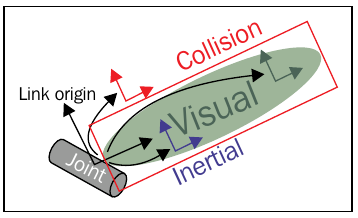
The link tag describes the inertial properties of a single link of a robot (mass and inertia matrix), its visual model (geometry and material) and its collision model (geometry). Each of these elements has its reference frame relative to the link reference frame as shown in the figure below.
<link name="<name of the link>">
  <inertial>...........</inertial>
  <visual> ............</visual>
  <collision>..........</collision>
</link>
The complete description can be found here.
The joint tag
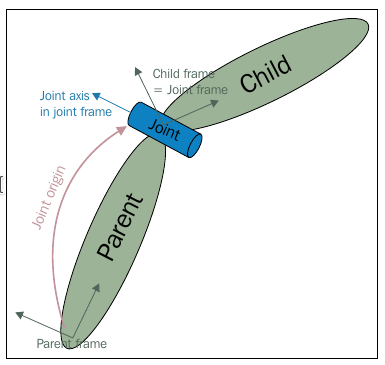
The joint tag describes a robot joint: its type (revolute, continuous, prismatic, fixed, floating, or planar), the links it connects (parent link, child link) and the transform between them (defaulted to the identity), the joint axis (e.g. the axis of rotation for revolute joints), dynamics properties (damping, friction) and limits (joint movement, velocity and effort).
The joint is located at the origin of the child link, as shown in the figure below, and the joint axis is specified in the joint frame.
<joint name="<name of the joint>" type="<type of the joint>">
   <origin xyz="..." rpy="..."/>
   <parent link="link1"/>
   <child link="link2"/>
   <axis>"..."</axis>
   <dynamics damping="...."/>
   <limit effort="..."/>
</joint>
The complete description can be found here.
The robot tag
The robot tag describes a complete robot: its name, the links, and the joints. Only tree structures can be represented using URDF, ruling out all parallel robots. The specification assumes the robot consists of rigid links connected by joints; flexible elements are not supported.
<robot name="<name of the robot>"/>
  <link> ..... </link>
  <link> ...... </link>
  <joint> ....... </joint>
  <joint> ...... </joint>
</robot>
A detailed description can be found here.

Exercise
Take a look at the pan_tilt.urdf file that describes a pan-tilt structure (you will find the file in the urdf folder in the package urdf_tutorial).
Verification tools
The command line tool check_urdf can be used to verify the correctness of a URDF file. It attempts to parse the file and either prints a description of the resulting kinematic chain, or an error message is reported.
You can test it by checking the correctness of the pan-tilt structure (move to the urdf folder):
check_urdf pan_tilt.urdf
Also the tree structure of the robot can be graphically shown using the command tool called urdf_to_graphviz.
urdf_to_graphviz pan_tilt.urdf pan_tilt
evince pan_tilt.pdf

Xacro (XML Macros)
Xacro is an XML macro language that extends URDF by providing:
Modularity: It creates macros that can be reused (even in other files), which results in a modular and more readable code.
Programmability: It supports simple programming statements, which makes the description more efficient.
Xacro files modify the robot tag to include a namespace:
<?xml version="1.0"?>
<robot xmlns:xacro="http://www.ros.org/wiki/xacro" name="pan_tilt">
Properties
Constants can be declared and used as named values inside the Xacro file, thus allowing to change these values more easily.
<xacro:property name="pan_link_length" value="0.01" />
<xacro:property name="pan_link_radius" value="0.2" />
....
<cylinder length="${pan_link_length}" radius="${pan_link_radius}"/>
Math expressions
Basic operations such as + , -, * , / , unary minus, and parenthesis can be used inside ${}.
<cylinder length="${pan_link_length}" radius="${pan_link_radius+0.02}"/>
Includes
Other Xacro files can be included inside a Xacro file using the xacro:include tag, e.g.:
<xacro:include filename="$(find packageName)/urdf/anotherXacroFile.xacro"/>
Macros
Macros can be defined to allow modularity. They improve the code readability and reduce the number of lines compared to urdf, e.g.:
<xacro:macro name="inertial_matrix" params="mass">
 <inertial>
  <mass value="${mass}" />
  <inertia ixx="0.5" ixy="0.0" ixz="0.0" iyy="0.5" iyz="0.0" izz="0.5" />
 </inertial>
</xacro:macro>
...
<xacro:inertial_matrix mass="1"/>
Exercise
Take a look at the pan_tilt.xacro file that describes a pan-tilt structure.
Conversion from Xacro to urdf
Any Xacro file can be converted to URDF as follows:
ros2 run xacro xacro pan_tilt.xacro > pan_tilt_generated.urdf
The Universal Robot Description
The package ur_description in the folder Universal_Robots_ROS2_Description contains, in the urdf subfolder, the description of the Universal Robot manipulators.
Exercise
Take a look at the inc/ur_common.xacro that uses xacro:property to define different values like the DH parameters, velocity limits, etc.
Take a look at the ur_macro.xacro file that defines the ur_robot xacro:macro that models the robot defining the links and joints. It includes the inc/ur_common.xacro file. The macro has many parameters to configure the different models of the Universal Robot manipulators.
Take a look at the ur.urdf.xacro file that uses the ur_robot xacro:macro defined in the ur_macro.xacro file. The file has several arguments to fill the parameters of the ur_robot xacro:macro. The ur.urdf.xacro file will be used for visualization in the next section.
Visualization tool
rviz is a 3D visualization tool for ROS (see the ROS 1 wikipage and the ROS 2 github repo for details).
rviz allows to visualize:
The robot (using the The robot_state_publisher and The joint_state_publisher packages).
The objects in the environment (using Markers).
Sensor data in different formats.
Notice that it is not a simulation, hence gravity, collisions and other physics phenomena are not considered here.
Launching rviz
We can use rviz to visualize the robots in the urdf_tutorial package.
The package contains the following launch file to visualize the pan-and-tilt structure using rviz. It launches:
The node rviz
The node joint_state_publisher
The node robot_state_publisher
def generate_launch_description():

    # General arguments
    description_package = LaunchConfiguration("description_package", default='urdf_tutorial')
    description_file = LaunchConfiguration("description_file", default='pan_tilt.xacro')

    launch_rviz = LaunchConfiguration("launch_rviz", default='true')
    rviz_config_file = PathJoinSubstitution(
        [FindPackageShare("urdf_tutorial"), "rviz", "display_urdf.rviz"]
    )

    robot_description_content = Command(
        [
            PathJoinSubstitution([FindExecutable(name="xacro")]),
            " ",
            PathJoinSubstitution(
                [FindPackageShare(description_package), "urdf", description_file]
            )
        ]
    )
    robot_description = {"robot_description": robot_description_content}

    robot_state_publisher_node = Node(
        package="robot_state_publisher",
        executable="robot_state_publisher",
        output="both",
        parameters=[{"use_sim_time": False}, robot_description],
    )

    joint_state_publisher_gui = Node(
        package="joint_state_publisher_gui",
        executable="joint_state_publisher_gui",
        name="joint_state_publisher_gui",
        output="screen",
    )

    rviz_node = Node(
        package="rviz2",
        executable="rviz2",
        name="rviz2",
        output="log",
        arguments=["-d", rviz_config_file],
        condition=IfCondition(launch_rviz),
        on_exit=Shutdown(),
    )

    log_robot_description = LogInfo(
            msg=robot_description.get("robot_description"),
    )

    # Description
    ld =  LaunchDescription()

    ld.add_action(robot_state_publisher_node)
    ld.add_action(joint_state_publisher_gui)
    ld.add_action(rviz_node)
    ld.add_action(log_robot_description)

    return ld
Exercise
colcon build --packages-up-to urdf_tutorial
source install/setup.bash
ros2 launch urdf_tutorial pantilt_visualization.launch.py
ros2 launch urdf_tutorial ur_visualization.launch.py


The joint_state_publisher
The joint_state_publisher package contains the joint_state_publisher node, for setting and publishing joint state values for a given URDF:
The URDF may be either passed on the command-line or via the /robot_description topic.
The node will find the non-fixed joints from an URDF model and publish, to the /joint_states topic, the joint state values of each joint in the sensor_msgs/JointState message format.
Parameters
rate (int): The rate at which to publish updates to the /joint_states topic. Defaults to 10.
publish_default_positions (bool): Whether to publish a default position for each movable joint to the /joint_states topic. Defaults to True.
source_list (array of strings): List of topics of type sensor_msgs/msg/JointStates to be subscribed to.
Published Topics
/joint_states (sensor_msgs/msg/JointState): The state of all of the movable joints in the system.
Subscribed Topics
(optional) /robot_description (std_msgs/msg/String): If no URDF is given on the command-line, then this node will listen on the /robot_description topic for the URDF to be published. Once it has been received at least once, this node will start to publish joint values to /joint_states.
(optional) /any_topic (sensor_msgs/msg/JointState): If the sources_list parameter is not empty (see Parameters above), then every named topic in this parameter will be subscribed to for joint state updates.
In order to use a GUI with a slider-based control window to control each joint, the package joint state publisher_gui should be used instead.
The robot_state_publisher
The robot state publisher package contains the Robot State Publisher, a node and a class to publish the state of a robot to tf2. At startup time, Robot State Publisher is supplied with a kinematic tree model (URDF) of the robot. It then subscribes to the joint_states topic (of type sensor_msgs/msg/JointState) to get individual joint states. These joint states are used to update the kinematic tree model, and the resulting 3D poses are then published to tf2.
Parameters
robot_description (string): The description of the robot in URDF form set at robot_state_publisher startup time (later updates to this parameter are possible and will be reflected in the robot_description topic).
frame_prefix (string): An arbitrary prefix to add to the published tf2 frames. Defaults to the empty string.
Subscribed Topics
joint_states (sensor_msgs/msg/JointState): The joint state updates to the robot poses.
Published Topics
robot_description (std_msgs/msg/String): The description of the robot URDF as a string.
tf (tf2_msgs/msg/TFMessage): The transforms corresponding to the movable joints of the robot.
tf_static (tf2_msgs/msg/TFMessage): The transforms corresponding to the static joints of the robot.
Markers
Rviz provides the Marker Display to let you visualize data without rviz knowing anything about interpreting that data. Data is sent to the display by publishing visualization_msgs/Marker messages, which let you show objects (3D meshes) or basic shapes (boxes, spheres, lines, arrows,..). The set of types that can be displayed is available here.
The visualization_msgs/MarkerArray message type describes a vector of visualization_msgs/Marker messages, which have the following fields:

As an example, build and run the rviz2_marker_demo package:
colcon build --packages-up-to rviz2_marker_demo
ros2 launch rviz2_marker_demo rviz_marker_demo.launch.py

Exercise
Take a look at the rviz_node.cpp file that implements a node that publishes marker messages to place objects on the scene. The following issues should be noted:
In this example, objects are located w.r.t a frame called assembly_frame, i.e. when they are published, the field marker.header.frame_id is set to assembly_frame. Then, the launch file runs a static_transform_publisher to broadcast a fixed transform between the global frame world and the example reference frame /assembly_frame.
For this demo, two Displays (the Marker and the tf) have been added (using the Add button on the bottom left), and then the configuration has been saved (with the File->Save Config As menu) to the file rviz_marker_demo.rviz. In the launch file this file is passed as an argument to the rviz node, and therefore when rviz is launched it opens with the desired appearance.
See the rviz user guide for more details.
EXERCISE 3b
To solve Exercise 3b you must modify the urdf_tutorial package that you have cloned in your git-projects/exercise3 folder.
Recall to keep commiting the changes when coding the solution (do small commits with good commit messages!) and edit the README.md file in the package explaining your solution (Markdown Cheat Sheet).
Exercise
The UR3 robot is to be used to assembly all the parts of the toy plane.
Create a scene with the objects of the rviz_marker_demo and the UR3 at position (0.3, 0.0, 0.0) (Hint: Create your own urdf/ur.urdf.xacro as recommended here).
Complete the node that publishes the objects markers array so as to broadcast the transforms of each of the objects, call them tf_XX, being XX the number of the object.
Add another node that broadcasts a static transform, called grasp_11, to grasp object 11 (the RearWing). The transform between tf_11 and grasp_11 should be a translation about z of 15 cm and a rotation of 180 degrees about the x axis.
