Version control using GIT
Introduction to Git
Git is a distributed version control system. Git allows groups of people to work on the same documents (often code) at the same time, and without stepping on each other’s toes.
A repository, or Git project, encompasses the entire collection of files and folders associated with a project, along with each file’s revision history (the file history appears as snapshots in time called commits).
Repositories are self-contained units and anyone who owns a copy of the repository can access the entire codebase and its history.
Multiple lines of development, called branches may simultaneously exist.
Using the command line or other ease-of-use interfaces, a git repository also allows for: interaction with the history, cloning, creating branches, committing, merging, comparing changes across versions of code, and more.
Useful resources:
Basic Git commands
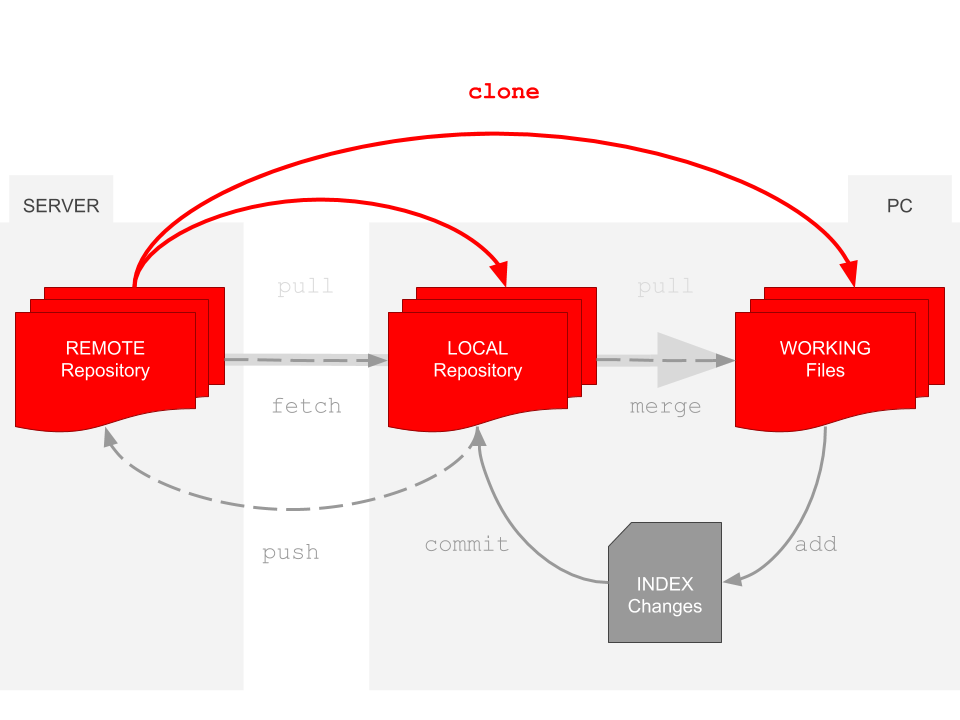
git init initializes a brand new Git repository and begins tracking an existing directory. It adds a hidden subfolder (.git) within the existing directory that houses the internal data structure required for version control.
git clone creates a local copy of a project that already exists remotely. The clone includes all the project’s files, history, and branches.
git add stages a change. Git tracks changes to a developer’s codebase, but it’s necessary to stage and take a snapshot of the changes to include them in the project’s history, using the git commit command.
git commit saves the snapshot to the project history and completes the change-tracking process. In short, a commit functions like taking a photo. Anything that’s been staged with git add will become a part of the snapshot with git commit.
git merge merges lines of development together. This command is typically used to combine changes made on two distinct branches. For example, a developer would merge when they want to combine changes from a feature branch into the master branch for deployment.
git pull updates the local line of development with updates from its remote counterpart. Developers use this command if a teammate has made commits to a branch on a remote, and they would like to reflect those changes in their local environment.
git push updates the remote repository with any commits made locally to a branch.
git status shows the status of changes as untracked, modified, or staged.
git branch shows the branches being worked on locally.
git checkout <branch> prepares for working on <branch>, switches to it by updating the index and the files in the working tree, and by pointing HEAD at the branch.
See a full reference guide to Git commands.
When several developers work on the same project it is advisable to work in separate branches:
Create a new branch
git checkout -b testbranch
Do the changes (and keep committing them)
Go back to master
git checkout master
Merge master with the branch
git merge testbranch
Delete the branch
git branch -d testbranch