TUTORIAL T2b: Communication using topics and services
Provided packages:
agitr_chapter3: Download the file agitr_chapter3.zip and unzip it into your catkin_ws/src folder.
agitr_chapter8: Download the file agitr_chapter8.zip and unzip it into your catkin_ws/src folder.
References:
This tutorial is partially based on chapter 3 and 8 of A gentle introduction ROS by Jason M. O’Kane.
Complementary resources:
Communication using topics
The package agitr_chapter3
This package contains:
- The program pubvel.cpp, whose executable file called pubvel creates a node called publish_velocity. This node broadcasts random command velocities to be used by the turtlesim node to move a turtle.
- The program subpose.cpp, whose executable file called subpose creates a node called subscribe_to_pose. This node subscribes to the pose messages send by the turtle of the turtlesim package, and prints it in the terminal.
Take a look at the package.xml file:
- Note that because pubvel uses a message type from the geometry_msgs package, we must declare a dependency on that package.
- Note that because subpose uses a message type from the turtlesim package, we must declare a dependency on that package.
1 2 3 4 5 6 7 8 9 10 11 12 13 14 15 | <?xml version="1.0"?>
<package format="2">
<name>agitr_chapter3</name>
<version>0.0.1</version>
<description>
Examples from A Gentle Introduction to ROS
</description>
<maintainer email="jokane@cse.sc.edu">
Jason O'Kane
</maintainer>
<license>TODO</license>
<buildtool_depend>catkin</buildtool_depend>
<depend>geometry_msgs</depend>
<depend>turtlesim</depend>
</package>
|
Take a look at the CMakeLists.txt file:
- Note that the find_package includes geometry_msgs.
- Note that the find_package includes turtlesim.
1 2 3 4 5 6 7 8 9 10 11 12 13 14 15 16 17 18 19 20 21 22 | # What version of CMake is needed?
cmake_minimum_required(VERSION 2.8.3)
# The name of this package.
project(agitr_chapter3)
# Find the catkin build system, and any other packages on which we depend.
find_package(catkin REQUIRED COMPONENTS roscpp geometry_msgs turtlesim)
# Declare our catkin package.
catkin_package()
# Specify locations of header files.
include_directories(include ${catkin_INCLUDE_DIRS})
# Declare the executable, along with its source files.
add_executable(pubvel src/pubvel.cpp)
add_executable(subpose src/subpose.cpp)
# Specify libraries against which to link.
target_link_libraries(pubvel ${catkin_LIBRARIES})
target_link_libraries(subpose ${catkin_LIBRARIES})
|
A publisher program
The pubvel.cpp program randomly generated command velocities to be sent to the turtlesim.
- Run the turtlesim:
$ rosrun turtlesim turtlesim_node
- Compile and execute the pubvel program
$ catkin build agitr_chapter3
$ source devel/setup.bash
$ rosrun agitr_chapter3 pubvel
>>> EXERCISE
- Check the nodes using rosnode and rqt_graph.
The code
1 2 3 4 5 6 7 8 9 10 11 12 13 14 15 16 17 18 19 20 21 22 23 24 25 26 27 28 29 30 31 32 33 34 35 36 37 38 39 | // This program publishes randomly-generated velocity
// messages for turtlesim.
#include <ros/ros.h>
#include <geometry_msgs/Twist.h> // For geometry_msgs::Twist
#include <stdlib.h> // For rand() and RAND_MAX
int main(int argc, char **argv) {
// Initialize the ROS system and become a node.
ros::init(argc, argv, "publish_velocity");
ros::NodeHandle nh;
// Create a publisher object.
ros::Publisher pub = nh.advertise<geometry_msgs::Twist>(
"turtle1/cmd_vel", 1000);
// Seed the random number generator.
srand(time(0));
// Loop at 2Hz until the node is shut down.
ros::Rate rate(2);
while(ros::ok()) {
// Create and fill in the message. The other four
// fields, which are ignored by turtlesim, default to 0.
geometry_msgs::Twist msg;
msg.linear.x = double(rand())/double(RAND_MAX);
msg.angular.z = 2*double(rand())/double(RAND_MAX) - 1;
// Publish the message.
pub.publish(msg);
// Send a message to rosout with the details.
ROS_INFO_STREAM("Sending random velocity command:"
<< " linear=" << msg.linear.x
<< " angular=" << msg.angular.z);
// Wait until it's time for another iteration.
rate.sleep();
}
}
|
Publishing messages
The message type: Each topic is associated with a message type, and the corresponding header file has to be included. In this case:
#include<geometry_msgs/Twist.h>,
where geometry_msg is the package containing the message type.
The publisher object: The work of actually publishing the messages is done by an object of class ros::Publisher.
ros::Publisher pub = node_handle.advertise<message_type>(topic_name, queue_size);
where:
- The node_handle is an object of class ros::NodeHandle, nh in the example.
- The message_type part inside the angle brackets — formally called the template parameter — is the data type for the messages we want to publish, geometry::msgs::Twist in the example.
- The topic_name is a string containing the name of the topic on which we want to publish (the leading slash has been dropped to make the topic name a relative name), turtle1/cmd_vel in the example.
- The queue_size is the size of the queue where messages are stored. A separate thread actually transmits them. A reasonable large valeu (e.g. 1000) is usually suitable (if your program rapidly publishes more messages than the queue can hold, the oldest unsent messages will be discarded).
If you want to publish messages on multiple topics from the same node, you’ll need to create a separate ros::Publisher object for each topic. Create them once and use those publishers throughout the execution of your program when needed.
The message object: The message object is created and filled with the data to be broadcasted, in the example the linear.x and the angular.z fields of the geometry_msgs::Twist message type (field values are defaulted to zero).
Publish the message: Finally, the publisher object publishes the message object.
pub.publish(msg)
>>> EXERCISE
- Check the topic type and the message info.
- Echo the messages being broadcasted.
The publishing loop
- Loop control: The publishing loop is controlled by the condition:
ros::ok()Informally, this function checks whether has not yet been shut down by a rosnode kill command or by a Ctrl-C interrupt signal.
- Publishing rate:
A ros::Rate object is created to control the publishing rate. It is set in Hz units. At the end of the loop, a sleep method of this object is called to complete the time established per loop iteration.
>>> EXERCISE
- Verify the publishing frequency
A subscriber program
The subpose.cpp program creates the node /subscribe_to_pose that subscribes to the /turtle1/pose topic, on which /turtlesim node publishes.
- Compile and execute the subpose program
$ rosrun agitr_chapter3 subpose
>>> EXERCISE
- Check the nodes using rosnode and rqt_graph.
- Verify that /turtlesim node is publishing this topic and that /subscribe_to_pose node is subscribed to it.
The code
1 2 3 4 5 6 7 8 9 10 11 12 13 14 15 16 17 18 19 20 21 22 23 24 25 26 | // This program subscribes to turtle1/pose and shows its
// messages on the screen.
#include <ros/ros.h>
#include <turtlesim/Pose.h>
#include <iomanip> // for std::setprecision and std::fixed
// A callback function. Executed each time a new pose
// message arrives.
void poseMessageReceived(const turtlesim::Pose& msg) {
ROS_INFO_STREAM(std::setprecision(2) << std::fixed
<< "position=(" << msg.x << "," << msg.y << ")"
<< " direction=" << msg.theta);
}
int main(int argc, char **argv) {
// Initialize the ROS system and become a node.
ros::init(argc, argv, "subscribe_to_pose");
ros::NodeHandle nh;
// Create a subscriber object.
ros::Subscriber sub = nh.subscribe("turtle1/pose", 1000,
&poseMessageReceived);
// Let ROS take over.
ros::spin();
}
|
The callback function
Any code that responds to incoming messages (whose arrival time is unknown) is placed inside a callback function, which ROS calls once for each arriving message.
void function_name(const package_name::type_name &msg)
The package_name and type_name refer to the message class for the topic to which we plan to subscribe.
The body of the callback function then has access to all of the fields in the received message, and can store, use, or discard that data as it sees fit.
The appropriate header that defines the message has to be included, e.g. #include <turtlesim/Pose.h>
The subscriber object
To subscribe to a topic, a ros::Subscriber object has to be created:
ros::Subscriber sub = node_handle.subscribe(topic_name, queue_size, pointer_to_callback_function)
Where:
- The node_handle is an object of class ros::NodeHandle, nh in the example.
- The topic_name is the name of the topic to which we want to subscribe, in the form of a string, turtle1/pose in the example.
- The queue_size is the integer size of the message queue for this subscriber (when a new message arrives, it is stored in a queue until ROS gets a chance to execute your callback function). If new messages arrive when the queue is full, the oldest unprocessed messages will be dropped to make room. The speed with which ROS empties a subscribing queue depends on how quickly we process callbacks.
- The pointer_to_callback_function is the pointer to the callback function, &poseMessageReceived in the example.
!!! If you use the wrong message type as the argument to your callback function, the compiler will not be able to detect this error. Instead, you’ll see run-time error messages complaining about the type mismatch. These errors could, depending on the timing, come from either the publisher or subscriber nodes.
Giving ROS control
ROS will only execute our callback function when we give it explicit permission to do so. There are actually two slightly different ways to accomplish this, using ros::spinOnce() or ros::spin().
ros::spinOnce() asks ROS to execute all of the pending callbacks from all of the node’s subscriptions, and then return control back to us.
ros::spin() asks ROS to wait for and execute callbacks until the node shuts down, i.e. it is roughly equivalent to this loop:
while(ros::ok()){ros::spinOnce();}
!!! If you mistakenly omit them, ROS won’t have the opportunity to execute your callback function…
Standard and common messages
Standard messages
Standard messages (std_msgs) include common message types representing primitive data types and other basic message constructs, such as multiarrays:
- Bool
- Byte
- ByteMultiArray
- Char
- ColorRGBA
- Duration
- Empty
- Float32
- Float32MultiArray
- Float64
- Float64MultiArray
- HeaderCheck your run_id folder and browse the rosout.log file
- Int16
- Int16MultiArray
- Int32
- Int32MultiArray
- Int64
- Int64MultiArray
- Int8
- Int8MultiArray
- MultiArrayDimension
- MultiArrayLayout
- String
- Time
- UInt16
- UInt16MultiArray
- UInt32
- UInt32MultiArray
- UInt64
- UInt64MultiArray
- UInt8
- UInt8MultiArray
>>> EXERCISE
- Use the rqt tool to browse the std_msgs types:
  $ rqt -s rqt_msg

Common messages
Common messages (common_msgs) group messages that are widely used by other ROS packages, i.e. messages for:
- actions (actionlib_msgs),
- diagnostics (diagnostic_msgs),
- geometric primitives (geometry_msgs),
- robot navigation (nav_msgs), and
- common sensors (sensor_msgs)
geometry_msgs provides messages for common geometric primitives such as points, vectors, and poses. These primitives are designed to provide a common data type and facilitate interoperability throughout the system.
- Accel
- AccelStamped
- AccelWithCovariance
- AccelWithCovarianceStampedmessage
- Inertia
- InertiaStamped
- Point
- Point32
- PointStamped
- Polygon
- PolygonStamped
- Pose
- Pose2D
- PoseArray
- PoseStamped
- PoseWithCovariance
- PoseWithCovarianceStamped
- Quaternion
- QuaternionStamped
- Transform
- TransformStamped
- Twist
- TwistStamped
- TwistWithCovariance
- TwistWithCovarianceStamped
- Vector3
- Vector3Stamped
- Wrench
- WrenchStamped
>>> EXERCISE
- Use the rqt tool to browse the geometry_msgs types:
  $ rqt -s rqt_msg

sensor_msgs provides messages for commonly used sensors, including cameras and scanning laser range finders.
- CameraInfo
- ChannelFloat32
- CompressedImage
- FluidPressure
- Illuminance
- Image
- Imu
- JointState
- Joy
- JoyFeedback
- JoyFeedbackArray
- LaserEcho
- LaserScan
- MagneticField
- MultiDOFJointState
- MultiEchoLaserScan
- NavSatFix
- NavSatStatus
- PointCloud
- PointCloud2
- PointField
- Range
- RegionOfInterest
- RelativeHumidity
- Temperature
- TimeReference
>>> EXERCISE
- Use the rqt tool to browse the sensor_msgs types:
  $ rqt -s rqt_msg
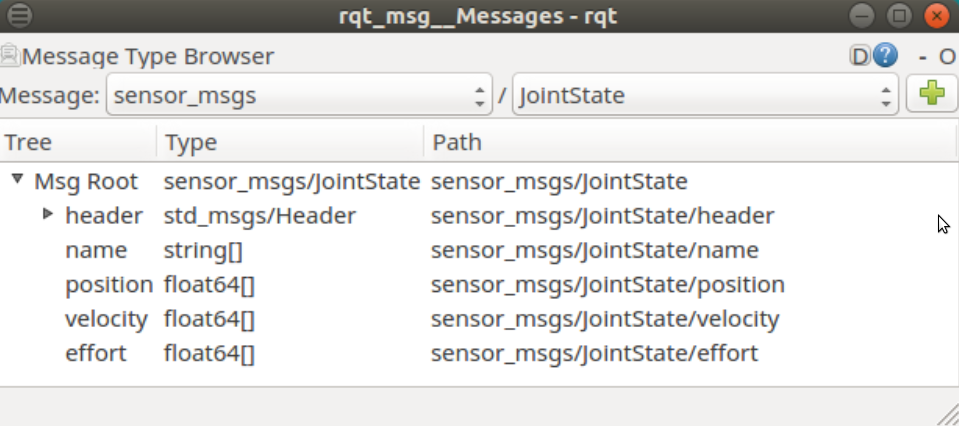
EXERCISE 2
Create a publisher to set the joints of the ur3 robot at some fixed predefined values.
Follow these steps:
- Analyze the name of the topic, the data type and its structure:
- Launch the ur3_demo_package:
$ roslaunch ur3_demo_package display.launch
- Use rostopic list to visualize the topics being published and see the name of the topic related to the joint states.
$ rostopic list
- Use rostopic type to visualize the data type for that topic.
$ rostopic type /team_A_arm/joint_states
- Use rosmsg show to see the contents of this type of messages.
$ rosmsg show sensor_msgs/JointStateWe will need to fill:
- the header.stamp with the current time ros::Time::now(),
- the name with the name of the joints (see below)
- the position with the desired positions.
- Use rostopic echo to see the names of the joints.
$ rostopic echo /team_A_arm/joint_states
- Create a new package named pubjoints (see Creating a workspace and a package).
- Edit the CMakeFile.txt and the package.xml files. You can follow those of package agitr_chapter3 but specifying the dependencies on sensor_msgs instead of geometry_msgs. Name the executable as pubjoints and the source file as pubjoints.cpp.
- Create the src folder in the package folder and copy there the pubvel.cpp of agitr_chapter3 package and rename it as pubjoints.cpp. Modify it to publish the joint states. Take into account the following issues:
- Include the header file <sensor_msgs/JointState.h>
- Create the publisher to broadcast messages of type sensor_msgs::JointState, and use the topic name that the ur3_demo_package is expecting (see step 1 above).
- Fill the message to be advertised. Do not forget to fill the header.stamp field and to resize the vectors in the sensor_msgs::JointState structure accordingly to the number of joints, e.g.:
- Test your node and visualize the robot:
- Edit the display.launch file of the ur3_demo_package and put the flag joint_gui to false so as not to activate the sliders.
- Launch the display.launch file (the robot will not show correctly since no joint values are yet being advertised).
- Run your node and see the robot at the configuration you are advertising.
TEMPLATE: A template of package pubjoints can be found here.
Communication using services
ROS service calls communication has the following features:
- It is bi-directional.
- It one-to-one.
A client node sends some data called a request to a server node and waits for a reply. The server, having received this request, takes some action (computing something, configuring hardware or software, changing its own behavior, etc.) and sends some data called a response back to the client.
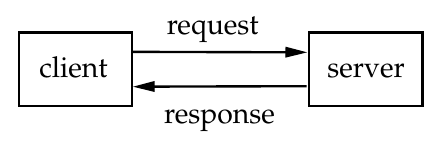
A service data type determines the content of messages by a collection of named fields, and is divided into two parts, the request and the response.
Run the turtlesim_node and the turtle_teleop_key executable files (that start the /turtlesim and /teleop_turtle nodes), and use the following command line tools to get insight of the ROS service calls communication.
- Listing of all services offered by all the active nodes:
$ rosservice list
Nodes usually use their node’s name as namespace, like /turtlesim/get_loggers, which prevents names collisions. Some services, however, give more general capabilities not conceptually tied to any particular node and have a global name, like the service /spawn, that creates a new turtle.
- Listing services offered by a a given node, e.g. those of node turtlesim:
$ rosnode info turtlesim
- Finding the data type of a service:
$ rosservice info /spawn
- Inspecting service data types, e.g. turtlesim/Spawn, to know the request message type and the response message type:
$ rossrv show turtlesim/Spawn
- Calling services from the command line. e.g. the /spawn service offerd by node turtlesim:
$ rosservice call /spawn 3 3 0 MyTurtleThe call has created a new turtle located at (3,3) with an orientation of zero radians and names “MyTurtle”, that comes with its own set of resources that belong to the new namespace MyTurtle (e.g. topics MyTurtle/cmd_vel or service /MyTurtle/teleport_absolute).
The service returns the name of the turtle. Also the information of whether the call has succeeded or not is returned, e.g. if the same call is repeated it will return an error because no two turtles can have the same name.
Recall that tab completion is very useful, for instance, you can type rosservice call /spawn and then press the tab key. You will see all the arguments that this service is waiting for.
The package agitr_chapter8
This package contains:
- The program spawn_turtle.cpp, whose executable file is called spawn_turtle. This program implements a node, also called spawn_turtle, that calls a service, namely the spawn service provided by the turtlesim node.
- The program pubvel_toggle.cpp, whose executable file is called pubvel_toggle. This program implements a node, also called pubvel_toggle, that publishes velocities to drive the turtle and also offers a service that allows to toggle between translational and rotational motion.
Take a look at the package.xml file:
- Note that because spawn_turtle uses a service type from the turtlesim package, we must declare a dependency on that package.
- Note that because pubvel_toggle uses a message type from the geometry_msgs package, we must declare a dependency on that package.
1 2 3 4 5 6 7 8 9 10 11 12 13 14 15 16 | <?xml version="1.0"?>
<package format="2">
<name>agitr_chapter8</name>
<version>0.0.1</version>
<description>
Examples from A Gentle Introduction to ROS
</description>
<maintainer email="jokane@cse.sc.edu">
Jason O'Kane
</maintainer>
<license>TODO</license>
<buildtool_depend>catkin</buildtool_depend>
<depend>roscpp</depend>
<depend>turtlesim</depend>
<depend>geometry_msgs</depend>
</package>
|
Take a look at the CMakeLists.txt file:
- Note that the find_package includes turtlesim.
- Note that the find_package includes geometry_msgs.
1 2 3 4 5 6 7 8 9 10 11 12 13 14 15 16 17 18 19 20 21 22 23 24 25 26 27 28 29 30 31 | # What version of CMake is needed?
cmake_minimum_required(VERSION 2.8.3)
# The name of this package.
project(agitr_chapter8)
# Find the catkin build system, and any other packages on which we depend.
find_package(catkin REQUIRED COMPONENTS
roscpp
geometry_msgs
turtlesim
)
# Declare our catkin package.
catkin_package(
# INCLUDE_DIRS include
# LIBRARIES demopkg
CATKIN_DEPENDS roscpp
# DEPENDS system_lib
)
# Specify locations of header files.
include_directories(include ${catkin_INCLUDE_DIRS})
# Declare the executable, along with its source files.
add_executable(pubvel_toggle src/pubvel_toggle.cpp)
add_executable(spawn_turtle src/spawn_turtle.cpp)
# Specify libraries against which to link.
target_link_libraries(pubvel_toggle ${catkin_LIBRARIES})
target_link_libraries(spawn_turtle ${catkin_LIBRARIES})
|
A client program
The spawn_turtle.cpp program is a client that calls the service /spawn offered by the turtlesim node to create a new turtle called Leo.
- Kill all nodes and rerun the turtlesim:
$ rosnode kill -a $ rosrun turtlesim turtlesim_node
- Compile and execute the spawn_turtle program
$ catkin build agitr_chapter8 $ source devel/setup.bash $ rosrun agitr_chapter8 spawn_turtle
The code
1 2 3 4 5 6 7 8 9 10 11 12 13 14 15 16 17 18 19 20 21 22 23 24 25 26 27 28 29 30 31 32 33 34 35 | //This program spawns a new turtlesim turtle by calling
// the appropriate service.
#include <ros/ros.h>
//The srv class for the service.
#include <turtlesim/Spawn.h>
int main(int argc, char **argv){
ros::init(argc, argv, "spawn_turtle");
ros::NodeHandle nh;
//Create a client object for the spawn service. This
//needs to know the data type of the service and its name.
ros::ServiceClient spawnClient
= nh.serviceClient<turtlesim::Spawn>("spawn");
//Create the request and response objects.
turtlesim::Spawn::Request req;
turtlesim::Spawn::Response resp;
req.x = 2;
req.y = 3;
req.theta = M_PI/2;
req.name = "Leo";
ros::service::waitForService("spawn", ros::Duration(5));
bool success = spawnClient.call(req,resp);
if(success){
ROS_INFO_STREAM("Spawned a turtle named "
<< resp.name);
}else{
ROS_ERROR_STREAM("Failed to spawn.");
}
}
|
Calling the service
The request and response types: Each service is associated with a service type, and the corresponding header file has to be included. In this case:
#include<turtlesim/Spawn.h>,
where turtlesim is the package containing the service type.
The client object: To carry out a service call, an object of class ros::ServiceClient is created:
ros::ServiceClient client = node_handle.serviceClient<service_type>(service_name);
where:
- The node_handle is an object of class ros::NodeHandle, nh in the example.
- The service_type part inside the angle brackets — formally called the template parameter — is the data type for the service we want to call, turtlesim::Spawn in the example.
- The service_name is a string containing the name of the service we want to call (a relative or global name), the relative name spawn in the example.
Creating the request and calling the service: A request object is created to contain the data to be sent to the server, e.g.:
package_name::service_type::Request req;package_name::service_type::Response resp;
In fact, Request and Response are data members of a strcture, usually called srv, defined in the service type header file.
Once the fields of the request and the response are filled with the data to be sent, the service can actually be called:
bool success=service_client.call(request, response)or alternatively:
bool success=service_client.call(srv)Note that before calling the service, the function waitForService() has been inserted to verify that the service is available. This is useful when nodes are run using a launch file.
>>> EXERCISE
- Kill all nodes and rerun them, but starting first with the spawn_turtle and then the turtlesim. Verify that if more than 5 s elapses between these runs, an error is trigged because the service that has to be called is not available.
A server program
The pubvel_toggle.cpp program creates the node /pubvel_toggle that publishes a velocity that is either translational or rotational. A service is offered to toggle between the two options.
- Compile and execute the pubvel_toggle program.
$ rosrun agitr_chapter8 pubvel_toggle
- Repeatedly call the service /toggle_forward using the command line in order to change between modes.
$ rosservice call /toggle_forward
!!!!! Do not forget to type source devel/setup.bash from the terminal you are calling the service.
The code
1 2 3 4 5 6 7 8 9 10 11 12 13 14 15 16 17 18 19 20 21 22 23 24 25 26 27 28 29 30 31 32 33 34 35 36 37 | //this program toggles between rotation and translation
//commands,based on calls to a service.
#include <ros/ros.h>
#include <std_srvs/Empty.h>
#include <geometry_msgs/Twist.h>
bool forward = true;
bool toggleForward(
std_srvs::Empty::Request &req,
std_srvs::Empty::Response &resp){
forward = !forward;
ROS_INFO_STREAM("Now sending "<<(forward?
"forward":"rotate")<< " commands.");
return true;
}
int main(int argc, char **argv){
ros::init(argc,argv,"pubvel_toggle");
ros::NodeHandle nh;
ros::ServiceServer server =
nh.advertiseService("toggle_forward",&toggleForward);
ros::Publisher pub=nh.advertise<geometry_msgs::Twist>(
"turtle1/cmd_vel",1000);
ros::Rate rate(2);
while(ros::ok()){
geometry_msgs::Twist msg;
msg.linear.x = forward?1.0:0.0;
msg.angular.z=forward?0.0:1.0;
pub.publish(msg);
ros::spinOnce();
rate.sleep();
}
}
|
The service callback
A callback function has to be defined, that is called once per service call received by the node. The Request parameter contains the data passed by the client, and the Response parameter is filled by the function. A boolean must be returned, that indicates either failure or success.
bool function_name(package_name::service_type::Request &req,package_name::service_type::Response &resp){ …. }
The server object
A server object is created to advertise the service offered, and to associate it with the callback function:
ros::ServiceServer server = node_handle.advertiseService<service_type>(service_name, pointer_to_callback_function);
The service_name is usually a relative name, although it could be a global name (no private names are accepted).
The service will be available until the server object is destroyed.
Giving ROS control
As done with the subscriber, we need to use ros::spin() or ros::spinOnce() to let ROS execute the callback.
Standard services / Non-standard services
std_srvs contains three service types called Empty, SetBool and Trigger, which are common service patterns for sending a signal to a ROS node.
- The Empty service does not exchange any actual data between the service and the client.
- The SetBool service is used to set bolean values.
- The Trigger service adds the possibility to check if triggering was successful or not.
However, non-standard services are implemented according to the needs. To allow a server to offer services with customized arguments and return values, a text file (with extension .srv) is generated with the input and output message types, e.g.:
1 2 3 | float64 newrate
---
bool ret
|
These files are stored in a subfolder of the package which is usually called srv.
The package.xml file and the CMakeLists.txt have to be modified to contain the dependencies for the generation of messages, and the CMakeLists.txt also the information of the .srv files used.
EXERCISE 3
Implement a client that uses the services provided by the ur3_demo_services package:
- to set the robot a a given configuration
- to set an obstacle at a given configuration
- to obtain the IK
Follow these steps:
- Analyze the services:
- Launch the ur3_demo_package with the server node:
$ roslaunch ur3_demo_package demo_services.launch
- Use rosservice list to visualize the names of the service being offered.
$ rosservice list
- Open the .srv files in the srv folde to the ur3_demo_package to see the request and the response of each one.
- Create a new package named democlients (see Creating a workspace and a package).
- Edit the CMakeFile.txt and the package.xml files. You can follow those of package agitr_chapter8 but specifying the dependencies on ur3_demo_package instead of turtlesim. Name the executable as democlients and the source file as democlients.cpp.
- Create the src folder in the package folder and copy there the spawn_turtle.cpp of agitr_chapter8 package and rename it as democlients.cpp. Modify it to subscribe to three services required. Take into account the following issues:
- Include the header files for the services, e.g. <ur3_demo_package/setrobconf.h>
- Create a ros::ServiceClient per each service, and use the service names that the ur3_demo_package is offering (see step 1 above).
- Fill the request field of the services and call them. The following values are proposed:
- setrobconf service: Set the robot at [-0.1, -0.2, -0.3, -0.4, -0.5, -0.6, -0.7].
- setobjpose service: Set the object with id 201 (the first black pawn) at pose [0.075, -0.175, 0.02, 0.0, 0.0, 0.0, 1.0].
- ik service: Compute the inverse kinematics for the robot end effector (tool0 frame) located at pose [0.484, 0.137, 0.219, 0.613, -0.559, -0.460, -0.317] w.r.t. the base_link frame. Recall that several solutions may exist.
- Test your node and visualize the scene:
- Launch the demo_services.launch file.
- Run your node and see the scene as configured by your node.
- for the inverse kinematics print the different solutions and check that one of them is the configuration used in the setrobconf service.
TEMPLATE: A template of package democlients can be found here.
A demo package
The democomunications zip file contains:
- Package teleop: package that controls the arrow keys and advertises the topic teleop/values.
- Package pract1: package that subscribes to the topic teleop/values to control the two joints of the pan-tilt robot.
Download and unzip into your catkin_ws/src folder:
- Take a look at the pract1 package.
- Build and launch it:
$roslaunch pract1 pract1.launch