TUTORIAL T2a: Basic concepts and development tools
Introduction
Middleware
A middleware is a computer software that connects software components or applications (middleware sits “in the middle” between software applications that may be run on different operating systems).
Middleware is useful for:
- Portability: they offer a common programming model across languages and/or platforms.
- Reliability: they are developed and tested separately from the final application.
- Managing complexity: low-level aspects are managed by suitable libraries that abstract specific operating system and hardware aspects.
Robotic systems are usually complex systems built on many different hardware and software components, as sensors and actuators as well as planners and control algorithms.
The use of a robotic middleware allows different components to exchange data using a common communication channel and using interfaces that are consistent between different applications.
This eases the sharing and reuse of code among different projects.
What is ROS?
“The Robot Operating System (ROS) is a flexible framework for writing robot software. It is a collection of tools, libraries, and conventions that aim to simplify the task of creating complex and robust robot behavior across a wide variety of robotic platforms.”
ROS is a robotic middleware and more. It provides:
- hardware abstraction,
- device drivers,
- libraries,
- visualizers,
- message-passing,
- package management, and more…

Some of the main features of ROS are:
- Distributed computation: Many modern robot systems rely on software that spans many different processes and runs across several different computers.
- ROS covers the need for communication between multiple processes that may or may not live on the same computer.
- ROS’s message passing interface is becoming a de facto standard for robot software interoperability.
- Software reuse: The rapid progress of robotics research has resulted in a growing collection of good algorithms for common tasks such as navigation, motion planning, mapping, and many others.
- ROS’s standard packages provide stable, debugged implementations of many important robotics algorithms.
- Rapid testing: The testing of real robotic systems applications can be time consuming and error-prone.
- ROS facilitates the separation of high-level processing and decision making programs from the low-level direct control of the hardware, which can be temporarily replaced by a simulator.
- ROS also provides a simple way to record and play back sensor data and other kinds of message.
The real robot, the simulator, and the bag playback mechanism can all provide identical (or at least very similar) interfaces.
- Development toolset: One of the strongest features of ROS is the powerful development toolset. These tools support introspecting, debugging, plotting, and visualizing the state of the system being developed.
ROS is licensed under an open source, BSD license.
What ROS is not
- An actual operating system. Although it offers services you would expect from an operating system, including hardware abstraction, low-level device control, implementation of commonly-used functionality, message-passing between processes, and package management.
- A programming language. ROS programs are written in C++ and client libraries are also available in Python, Java, Lisp,…
- A programming environment / IDE. It is common to simply use a text editor and the command line, without any IDE.
- A hard real-time architecture. ROS is fast, and is used for online operation in many robots, it is inherently best-effort in many cases, and does not provide guarantees about the timing of operations (should not use ROS for operations that have strict timing requirements).
ROS core components
Communication infrastructure
ROS applications are composed of several processes loosely coupled, connected as nodes of a peer-to-peer network (the ROS runtime graph) using different types of strongly-typed communication.
- A node is a process that performs computation.
- Gives additional fault tolerance as crashes are isolated to individual nodes.
- Expose a minimal API to the rest of the graph.
- Have a graph resource name that uniquely identify them to the rest.
- A message is a simple data structure.
- Nodes communicate with each other using messages.
- Standard primitive types are supported (integer, floating point, boolean, …).
At the lowest level, ROS offers a message passing interface that provides inter-process communication.
The ROS middleware provides:
- Publish/subscribe anonymous message passing: ROS’s built-in and well-tested messaging system saves you time by managing the details of communication between distributed nodes via the anonymous publish/subscribe mechanism. Topics are named buses over which nodes exchange messages.
- Request/response remote procedure calls: Synchronous request/response interactions between processes. A Service is defined by a pair of messages: one for the request and one for the reply.
- Recording and playback of messages: Because the publish/subscribe system is anonymous and asynchronous, the data can be easily captured and replayed without any changes to code.
- Distributed parameter system: A way for tasks to share configuration information through a global key-value store. It allows you to easily modify your task settings, and even allows tasks to change the configuration of other tasks.
Robot-specific features
Some of the robot-specific capabilities that ROS provides are:
- Standard Message Definitions for Robots: There are message definitions for geometric concepts like poses, transforms, and vectors; for sensors like cameras, IMUs and lasers; and for navigation data like odometry, paths, and maps; among many others.
- Robot Geometry Library: The tf library manages coordinate transform data for robots (both static transforms, such as a camera that is fixed to a mobile base, and dynamic transforms, such as a joint in a robot arm).
- Robot Description Language: The Unified Robot Description Format (URDF) allows you to describe, using an XML document, the physical properties of your robot, from the lengths of limbs and sizes of wheels to the locations of sensors and the visual appearance of each part of the robot.
- Preemptable Remote Procedure Calls: Used for communications where you need to initiate a goal-seeking behavior, monitor its progress, be able to preempt it along the way, and receive notification when it is complete.
Applications
The following videos show two robotic systems developed using ROS: a teleoperated hand-arm system and an industrial mobile platform.
Regarding the teleoperation system, two industrial robots equipped with mechanical hands are teleoperated by an operator equipped with two sensorized gloves and two wrist trackers.
The components of the system and the corresponding nodes of the ROS graph are the following:

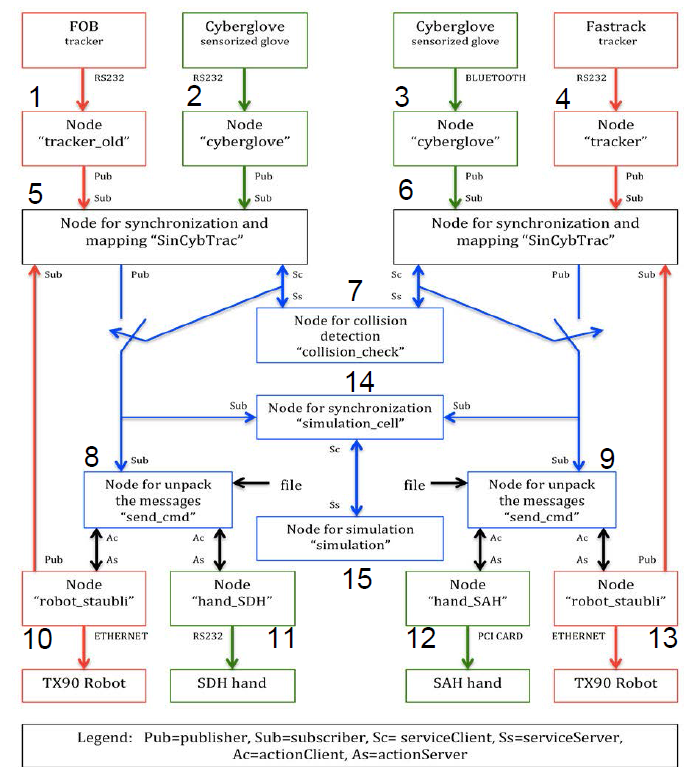
- Nodes #1 to #4 broadcast glove and tracker data using Topics. Nodes #5 and#6 subscribe to them.
- Nodes #5 and#6 perform the mapping and send queries to Node #7 (the collision-check node) using Services.
- Nodes #5 and#6 broadcasted collision-free configurations using Topics. Nodes #8 and #9 subscribe to them.
- Nodes #8 and #9 send the motion commands to Nodes #10 to #13 (the nodes that control the mechanical hands and the robots) using Actions.
ROS command-line tools
Running ROS
roscore is the first thing you should run when using ROS.
$ roscore
- You should allow the master to continue running for the entire time that you’re using ROS.
- One reasonable workflow is to start roscore in one terminal, then open other terminals for your “real” work.
- There are not many reasons to stop roscore, except when you have finished working with ROS.
- When you reach that point, you can stop the master by typing Ctrl-C in its terminal.
Note that ROS nodes connect to the master when they start up, and do not attempt to reconnect if that connection fails later on. Therefore, if you stop roscore, any other nodes running at the same time will be unable to establish new connections, even if you restart roscore later.
rosrun allows you to use the package name to directly run a node within a package (without having to know the package path).
$ rosrun [package_name] [executable_name]
>>> Exercise: In three separate terminals, execute these three commands:
 $ roscore
 $ rosrun turtlesim turtlesim_node
 $ rosrun turtlesim turtle_teleop_key
You should see a graphical window with a turtle-shaped robot that lives in a square world.
If you give the input focus to the third terminal (the one executing the turtle_teleop_key command) and press the Up, Down, Left, or Right keys, the turtle will move in response to your commands, leaving a trail behind it.

The node name can be overridden adding a parameter to rosrun:
$ rosrun [package_name] [executable_name] __name:=node_name
To run simultaneously a collection of nodes, ROS provides a mechanism to configure and launch them, based on a lightweight xml file and the roslaunch program.
Getting information of the ROS graph
rosnode
rosnode displays information about the ROS nodes that are currently running. Its options are:

The following command:
$ rosnode list
lists the names of the nodes that are running. Doing this after having executed the previous exercise results:
/rosout/teleop_turtle/turtlesim
- The /rosout node is a special node that is started automatically by roscore. Its purpose is somewhat similar to the standard output (i.e. std::cout).
- Notice that node names are not necessarily the same as the names of the executables underlying those nodes.
>>> Exercise: Use info with the -q option to check the basic information of the /teleop_turtle and /turtlesim nodes.
The command:
$ rosnode kill [node name]
kills a node and unregisters it from the master (on the contrary, by using the Ctrl+C to kill a node does not unregister it, and a rosnode cleanup should be done later).
Note that killing and restarting a node usually does not have a major impact on other nodes.
>>> Exercise: Kill the /turtlesim node and rerun it.
rqt_graph
rqt_graph is the easiest way to visualize the publish-subscribe relationships between ROS nodes.
The graph of the turtlesim example is:
$ rqt_graph

By unchecking the “Hide debug” box the graph shown is:
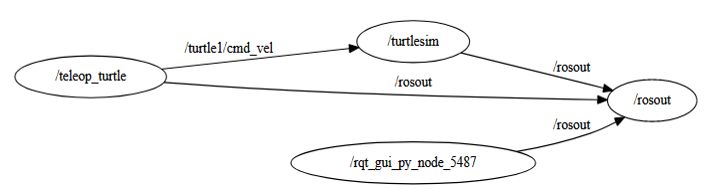
- Notice that rqt_graph itself appears as a node
- All of these nodes publish messages on the /rosout topic
- Notice that /rosout refers to both a node and a topic. ROS doesn’t get confused by these kinds of duplicate names because it’s always clear from the context whether we want to talk about the /rosout node or /rosout topic.
>>> Exercise: Check again the “Hide Debug” option and then play with the options of the GUI menu.
rostopic
The rostopic tool allows you to get information about ROS topics (datarate, actual data, publishers, subscribers). Its options are:

>>> Exercise: List all topics being broadcasted and check the publishing rate and the bandwidth consumed by the topic published by the /teleop_turtle node while teleoperating the turtle with the keys.
Even if you do not care much about the specific rates, these commands can be useful for debugging, because they provide an easy way to verify that messages are indeed being published regularly on particular topics.
>>> Exercise: Echo the topic /turtle1/cmd_vel and visualize the output while teleoperating the turtle with the keys.
>>> Exercise: Check the type of the topic /turtle1/cmd_vel.
rosmsg
rosmsg allows to see the structure of the message types, e.g.:

>>> Exercise: Use the -h options to see all the options of rosmsg, then analyze the structure of the message type of the topic /turtle1/pose.
The ROS build system
A build system is responsible for generating ‘targets’ from raw source code that can be used by end users.
To build targets, the build system needs information such as:
- the locations of tool chain components (e.g. C++ compiler)
- source code locations
- code dependencies
- external dependencies
- where those dependencies are located
- which targets should be built
- where targets should be built
- where targets should be installed
In ROS projects, source code is organized into ‘packages’ where each package typically consists of one or more targets when built.
catkin is the custom ROS build system.
catkin’s workflow is very similar to CMake’s but adds support for automatic ‘find package’ infrastructure and building multiple, dependent projects at the same time.
ROS filesystem
The ROS filesystem main components are:
- Packages: Packages are the main unit for organizing software in ROS. A package may contain:
- ROS runtime processes (nodes),
- a ROS-dependent library,
- datasets,
- configuration files.
Packages are the most atomic build item and release item in ROS.
- Metapackages: Metapackages are specialized Packages which only serve to represent a group of related other packages (formerly called Stacks).
- Repositories: A collection of packages which share a common Version Control System.
To obtain a list of all of the installed ROS packages use:
$ rospack list
To find the directory of a single package, use:
$ rospack find package-name
(you can use tab completion to avoid the need to remember name and to prevent any kind of typos).
The catkin workspace
Packages that you create should live together in a directory called a workspace (usually called catkin_ws).
For many users, there’s no real need to use more than one ROS workspace, although it may be useful to maintain several independent workspaces if you’re working on many packages or have several distinct projects.
The workspace structure is the following:

Package structure
Each package contains a package manifest and a CMakeLists.txt file.
The package manifest provides metadata about a package, including its name, version, description, license information, dependencies, and other meta information like exported packages. See the details at the ROS wiki (the newer format 2 is recommended over the older format 1).

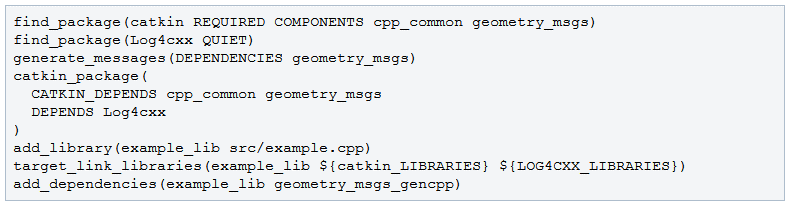
The CMakeLists.txt file describes the build instructions for the CMake. See the details at the ROS wiki.
Creating a workspace and a package
Create a workspace and a void package (using catkin tools):
$ mkdir -p catkin_ws/src
$ cd catkin_ws/src
$ catkin create pkg agitr_hello --rosdistro melodic
Create a src folder inside the agitr_hello package directory to store the hello.cpp file.
Take a look at the C++ code:

>>> Exercise: Take a close look at the package.xml file, and personalize it with your data and add the dependencies required as shown below.
1 2 3 4 5 6 7 8 9 | <?xml version="1.0"?>
<package format="2">
<name>agitr_hello</name>
<version>0.0.0</version>
<description>The agitr_hello package</description>
<maintainer email="my_email@upc.edu">my_name</maintainer>
<license>TODO</license>
<buildtool_depend>catkin</buildtool_depend>
</package>
|
(the dependencies declared in the manifest are not used in the build process; if you omit them here, you likely won’t see any error messages until you distribute your package to others who try to build it without having the required packages installed.)
>>> Exercise: Take a close look at the CMakeLists.txt file and modify it by uncommenting and completing as shown below.
1 2 3 4 5 6 7 8 9 10 11 12 13 14 15 16 17 18 19 20 | # define the cmake version required
cmake_minimum_required(VERSION 3.0.2)
# the name of the package
project(agitr_hello)
# find the catkin build system, and any other package on which we depend on
find_package(catkin REQUIRED COMPONENTS roscpp)
# declare our catkin package
catkin_package()
# specify the location of the header files
include_directories( ${catkin_INCLUDE_DIRS} )
# declare the executable, along with its source files
add_executable(hello src/hello.cpp)
# specify libraries against which to link
target_link_libraries(hello ${catkin_LIBRARIES})
|
Note that the package dependencies have been set, the executable has been declared and the libraries to be linked to have been added.
Build and run the package
From the catkin_ws folder, build the package using catkin build:
$ catkin build agitr_hello
- Because catkin is designed to build all of the packages in your workspace, this command must be run from your workspace directory.
- It performs several configuration steps and creates subdirectories called devel and build within your workspace.
- These two new directories contain build-related files like automatically-generated makefiles, object code, and the executables themselves.
Run the executable:
$ source devel/setup.bash
$ rosrun agitr_hello hello
The automatically-generated setup.bash script has to be executed to set several environment variables that enable ROS to find your package and its newly-generated executables.
It is advisable to do a fresh build by running the catkin clean command, that eliminates the devel and build folders, before running the catkin build command.
Catkin tools quick start
- The build verb is used to build one or more packages in a catkin workspace.
- The clean verb makes it easier and safer to clean various products of a catkin workspace.
- The list verb is used to find and list information about catkin packages.
More info at the catkin-tools webpage.
You can also follow a quick start tutorial (that includes a didactic video).
The launch utility
What follows is an example of a launch file that starts: a turtlesim simulator, along with the teleoperation node:
1 2 3 4 5 6 7 8 9 10 11 12 13 14 15 | <launch>
<node
pkg="turtlesim"
type="turtlesim_node"
name="turtlesim"
respawn="true"
/>
<node
pkg="turtlesim"
type="turtle_teleop_key"
name="teleop_key"
required="true"
launch-prefix="xterm -e"
/>
</launch>
|
Download the demolaunch.zip file and decompress it in your catkin_ws/src folder. It contains the packages demolaunch that has examples of launch files for the turtlesim demo.
Build the package and execute the launch file shown above as follows:
$ catkin build
$ source devel/setup.bash
$ roslaunch demolaunch teleopturtlesim.launch
Basic features
- Before starting any nodes, roslaunch will determine whether roscore is already running and, if not, start it automatically.
- All of the nodes in a launch file are started at roughly the same time. As a result, you cannot be sure about the order in which the nodes will initialize themselves. Well-written ROS nodes don’t care about the order in which they and their siblings start up.
- To terminate an active roslaunch, use Ctrl-C . This signal will attempt to gracefully shut down each active node from the launch.
Naming and placing conventions
- Each launch file should be associated with a particular package.
- The usual naming scheme is to give launch files names ending with .launch.
- They are stored either directly in the package directory, or in a subdirectory usually called launch.
Main elements
1. The root element: <launch> … </launch>
Like every XML document, launch files have exactly one root element. It is called launch. All of the other elements of each launch file should be enclosed between these tags.
2. The node element: <node> … </node>
The launch files contain a collection of node elements corresponding to the nodes to be launched.
The attributes of this element are:
- pkg (required): The name of the package the node belongs to.
- type (required): The name of the executable file that starts the node.
- name (required): The name of the node. This overrides any name that the node would normally assign to itself in its call to ros::init. It should be a relative name (without mention of any namespaces), not a global name.
- respawn (optional): If set to “true” roslaunch restarts the node when it terminates.
- required (optional): If a node is labeled as required then when it is terminated roslaunch terminates all other nodes.
- launch-prefix (optional): Used to insert the given prefix at the start of the command line that runs the node. The prefix “xterm-e” starts a new terminal window.
- output (optional): If set to “screen” (for only a single node) allows the standard output of the node be the terminal and not a log file.
- ns (optional): To set a namespace.
EXERCISE 1
- Download the ris_project.zip file and decompress it in your catkin_ws/src folder. It contains the following packages, that will be used in all the tutorials:
- ur3_demo_package: Project scene setup and server for basic services.
- realsense_lab: Realsense extrinsic parameters calibration.
- aruco_ros: Software package and ROS wrappers of the Aruco Augmented Reality marker detector library.
- universal_robot: ROS support for the universal robots.
- Universal_Robots_ROS_Driver: Driver enabling ROS operation of UR robots.
- robotiq: ROS-Industrial robotiq meta-package.
- ur3ik: Inverse Kinematics of the UR3 robot.
- Build the packages (with the catkin build instruction) and launch the ur3_demo_package using the display.launch file. A UR3 robot is graphically shown as well as a set of sliders to move the robot joints:

- List the nodes and visualize the ROS graph. List also the topics and echo the joint values while moving the sliders.