Visualizing Kautham in RViz
Configuring a new .rviz file
RViz uses .rviz files to configure the panels that will be displayed and the information shown in each. For a full explanation of all RViz capabilities, refer to the official documentation.
Kautham’s ROS interface publishes object poses and robot joint positions to separate topics. However, when a fresh RViz instance is opened, the view will appear empty because no displays have been configured for the current scenario. The following steps describe how to create and configure a new RViz file for use with Kautham.
Create an empty .rviz file: Create the file on the scenario folder, optionally inside an /rviz folder, e.g
<scenario_path>/rviz/<your_config>.rviz.Copy the base configuration: Paste the provided base
.rvizcontents into the file.
Panels:
  - Class: rviz_common/Displays
    Help Height: 87
    Name: Displays
    Property Tree Widget:
      Expanded:
        - /Global Options1
        - /Status1
        - /RobotModel1
      Splitter Ratio: 0.6363636255264282
    Tree Height: 785
  - Class: rviz_common/Selection
    Name: Selection
  - Class: rviz_common/Tool Properties
    Expanded:
      - /2D Goal Pose1
      - /Publish Point1
    Name: Tool Properties
    Splitter Ratio: 0.5886790156364441
  - Class: rviz_common/Views
    Expanded:
      - /Current View1
    Name: Views
    Splitter Ratio: 0.5
  - Class: rviz_common/Time
    Experimental: false
    Name: Time
    SyncMode: 0
    SyncSource: ""
Visualization Manager:
  Class: ""
  Displays:
    - Alpha: 0.5
      Cell Size: 1
      Class: rviz_default_plugins/Grid
      Color: 160; 160; 164
      Enabled: true
      Line Style:
        Line Width: 0.029999999329447746
        Value: Lines
      Name: Grid
      Normal Cell Count: 0
      Offset:
        X: 0
        Y: 0
        Z: 0
      Plane: XY
      Plane Cell Count: 10
      Reference Frame: <Fixed Frame>
      Value: true
    - Alpha: 1
      Class: rviz_default_plugins/RobotModel
      Collision Enabled: false
      Description File: ""
      Description Source: Topic
      Description Topic:
        Depth: 5
        Durability Policy: Volatile
        History Policy: Keep Last
        Reliability Policy: Reliable
        Value: ""
      Enabled: true
      Links:
        All Links Enabled: true
        Expand Joint Details: false
        Expand Link Details: false
        Expand Tree: false
        Link Tree Style: ""
      Mass Properties:
        Inertia: false
        Mass: false
      Name: RobotModel
      TF Prefix: ""
      Update Interval: 0
      Value: true
      Visual Enabled: true
  Enabled: true
  Global Options:
    Background Color: 48; 48; 48
    Fixed Frame: kthm_world
    Frame Rate: 30
  Name: root
  Tools:
    - Class: rviz_default_plugins/Interact
      Hide Inactive Objects: true
    - Class: rviz_default_plugins/MoveCamera
    - Class: rviz_default_plugins/Select
    - Class: rviz_default_plugins/FocusCamera
    - Class: rviz_default_plugins/Measure
      Line color: 128; 128; 0
    - Class: rviz_default_plugins/SetInitialPose
      Covariance x: 0.25
      Covariance y: 0.25
      Covariance yaw: 0.06853891909122467
      Topic:
        Depth: 5
        Durability Policy: Volatile
        History Policy: Keep Last
        Reliability Policy: Reliable
        Value: /initialpose
    - Class: rviz_default_plugins/SetGoal
      Topic:
        Depth: 5
        Durability Policy: Volatile
        History Policy: Keep Last
        Reliability Policy: Reliable
        Value: /goal_pose
    - Class: rviz_default_plugins/PublishPoint
      Single click: true
      Topic:
        Depth: 5
        Durability Policy: Volatile
        History Policy: Keep Last
        Reliability Policy: Reliable
        Value: /clicked_point
  Transformation:
    Current:
      Class: rviz_default_plugins/TF
  Value: true
  Views:
    Current:
      Class: rviz_default_plugins/Orbit
      Distance: 5.339938163757324
      Enable Stereo Rendering:
        Stereo Eye Separation: 0.05999999865889549
        Stereo Focal Distance: 1
        Swap Stereo Eyes: false
        Value: false
      Focal Point:
        X: 0.28732845187187195
        Y: -0.6347151398658752
        Z: 1.3554511070251465
      Focal Shape Fixed Size: true
      Focal Shape Size: 0.05000000074505806
      Invert Z Axis: false
      Name: Current View
      Near Clip Distance: 0.009999999776482582
      Pitch: 0.21039821207523346
      Target Frame: <Fixed Frame>
      Value: Orbit (rviz)
      Yaw: 5.2035698890686035
    Saved: ~
Window Geometry:
  Displays:
    collapsed: false
  Height: 1141
  Hide Left Dock: false
  Hide Right Dock: false
  QMainWindow State: 000000ff00000000fd00000004000000000000017e000003b5fc0200000008fb0000001200530065006c0065006300740069006f006e00000001e10000009b0000007901000003fb0000001e0054006f006f006c002000500072006f007000650072007400690065007302000001ed000001df00000185000000a3fb000000120056006900650077007300200054006f006f02000001df000002110000018500000122fb000000200054006f006f006c002000500072006f0070006500720074006900650073003203000002880000011d000002210000017afb000000100044006900730070006c006100790073010000004c000003b5000000fd01000003fb0000002000730065006c0065006300740069006f006e00200062007500660066006500720200000138000000aa0000023a00000294fb00000014005700690064006500530074006500720065006f02000000e6000000d2000003ee0000030bfb0000000c004b0069006e0065006300740200000186000001060000030c00000261000000010000011000000323fc0200000003fb0000001e0054006f006f006c002000500072006f00700065007200740069006500730100000041000000780000000000000000fb0000000a00560069006500770073000000004c00000323000000d301000003fb0000001200530065006c0065006300740069006f006e010000025a000000b200000000000000000000000200000490000000a9fc0100000001fb0000000a00560069006500770073030000004e00000080000002e10000019700000003000007800000004cfc0100000002fb0000000800540069006d0065010000000000000780000002bd01000003fb0000000800540069006d0065010000000000000450000000000000000000000601000003b500000004000000040000000800000008fc0000000100000002000000010000000a0054006f006f006c00730100000000ffffffff0000000000000000
  Selection:
    collapsed: false
  Time:
    collapsed: false
  Tool Properties:
    collapsed: false
  Views:
    collapsed: false
  Width: 1920
  X: 1280
  Y: 0
Launch the KTMPB client selecting this configuration: Use the launch file with the parameter rviz_config_filename.
ros2 launch ktmpb_client ktmpb_full.launch.py models_folder_path:=[path/to/the/models/folder] scenario_folder_path:=[path/to/scenario/folder] tamp_config_filename:=<tampconfig_file>.xml rviz_config_filename:=rviz/<your_config>.rviz
The RViz will appear empty.
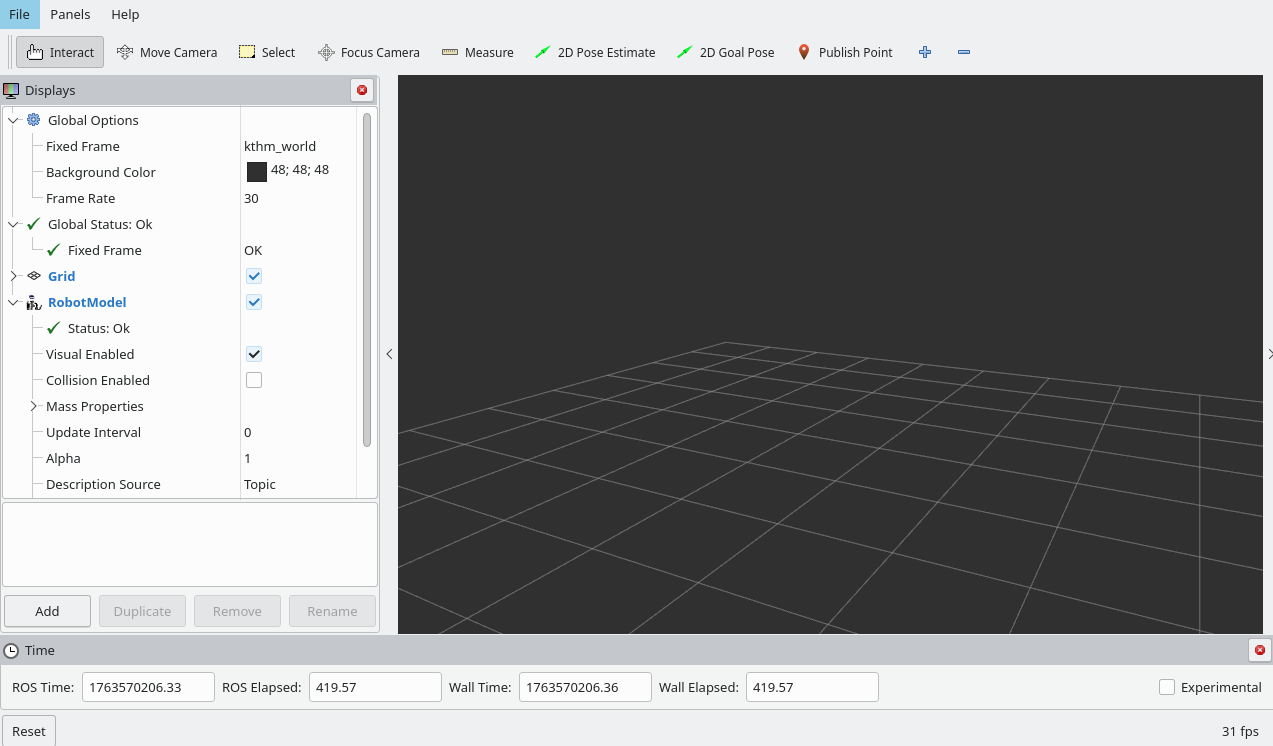
IMPORTANT : In Global Options, make sure that Fixed Frame is set to kthm_world.
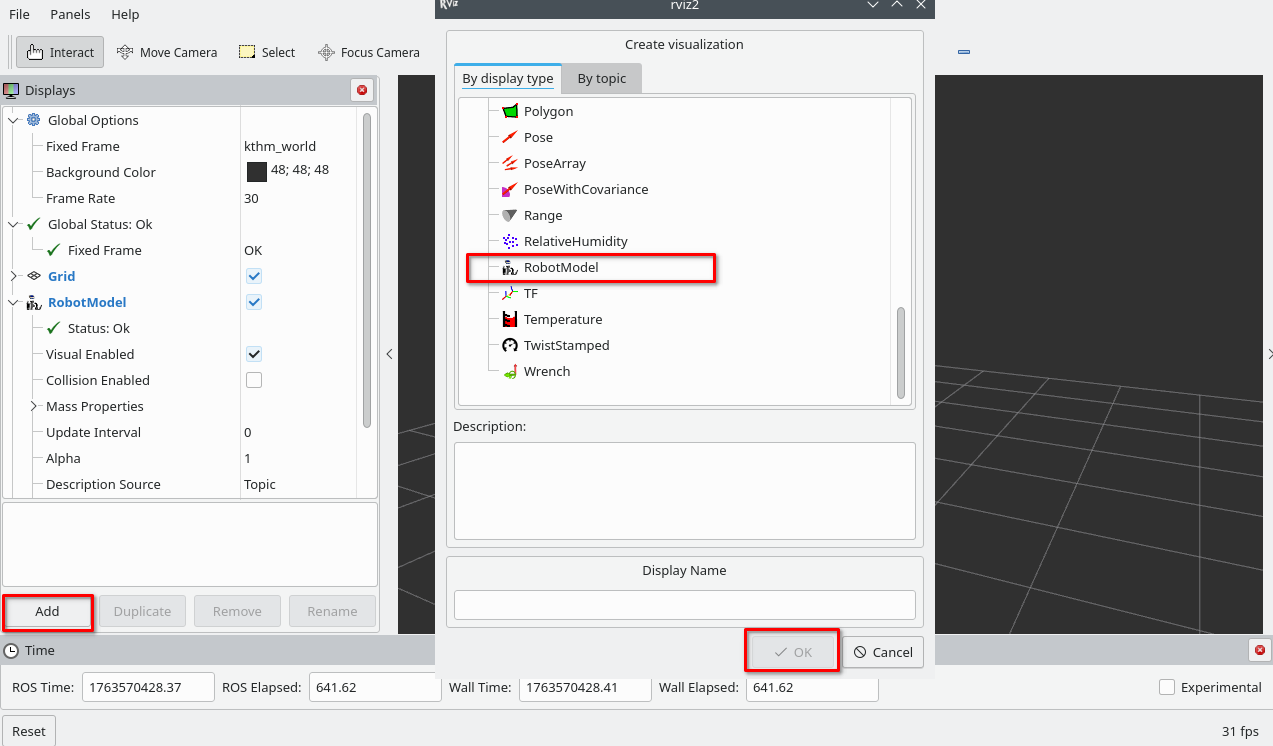
For each robot and object:
Add -> RobotModel -> Ok
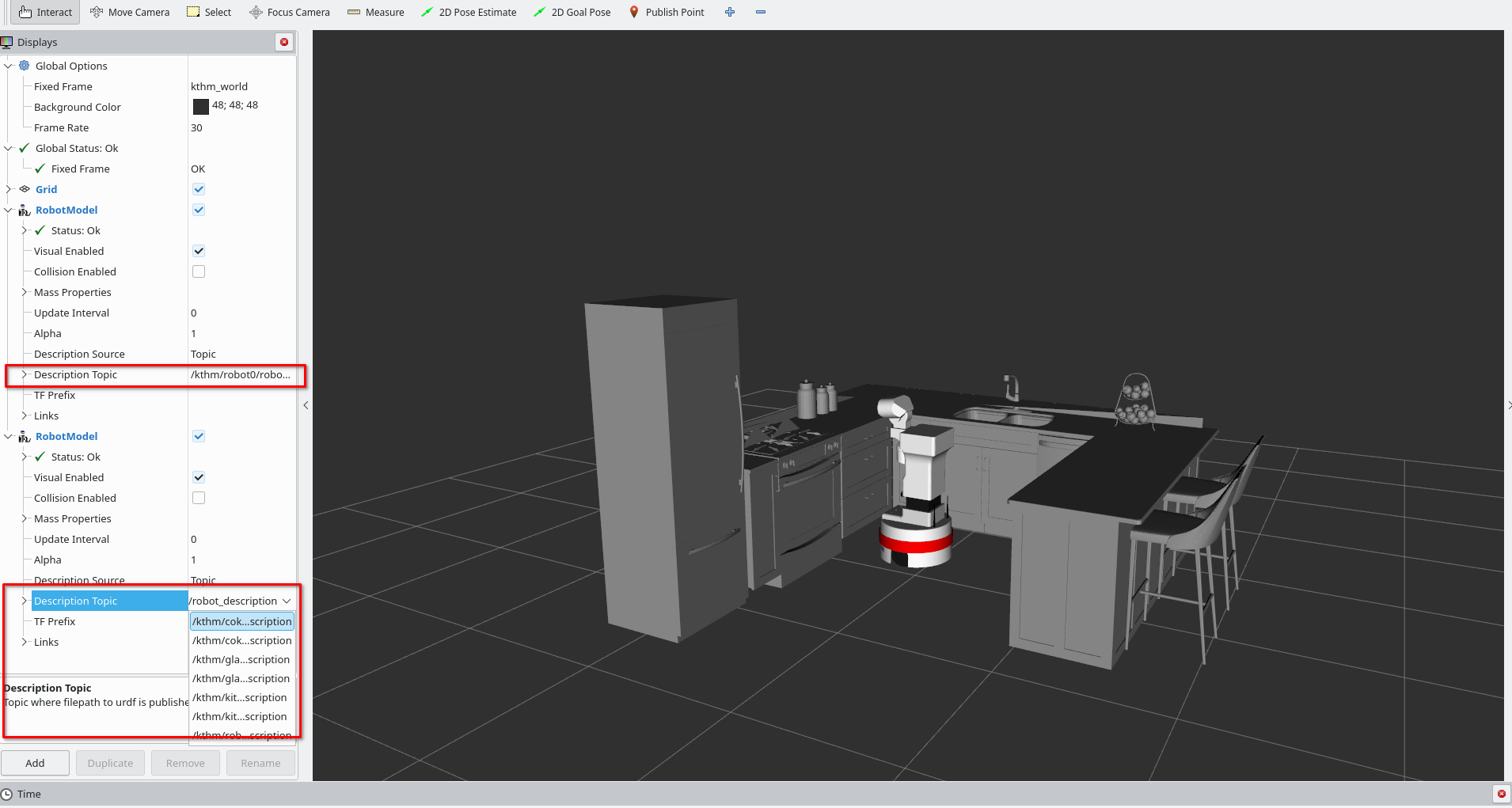
Inside RobotModel, select DescriptionTopic to the value of the kautham name of the object or robot you want to see
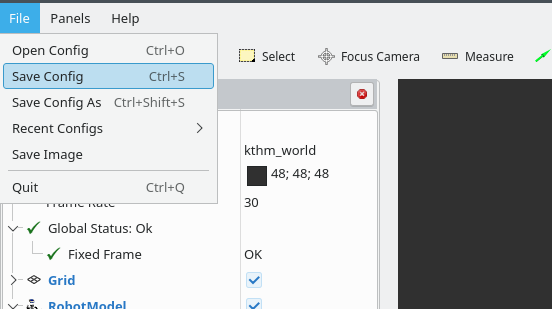
Save the configuration (or save it into a new file). This file will copy the camera settings, the models and any other active view you have changed in your RViz, meaning this process does not need to be repeated.
Summary
Create a blank
.rvizfile inside your scenario folder (recommended: anrviz/subfolder).Copy the contents of the base
.rvizconfiguration provided on this page.Launch the
ktmpbinterface using the.rvizfile as a parameter.Set the RViz Fixed Frame to
/kthm_world.For each object (including robots): add a RobotModel display and set the correct description topic.
Save the RViz configuration.
After completing this process, Kautham RViz will automatically visualize all elements in the Kautham world when launched with this configuration.